
The homepage banners for news updates come from the (Govintra) News updates widget. Each copy of the widget shows only the types you tick for it, in one colour. That is why an update can drop off the homepage when its type changes, while it stays on the News updates page. Switching the module on, adding updates, types and expiry are in Set up and use news updates.
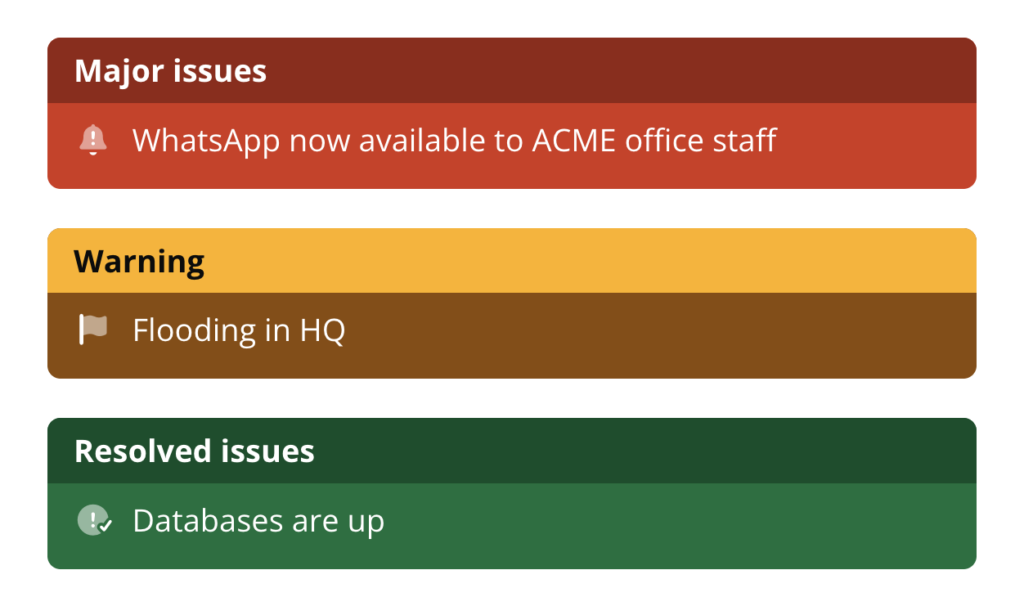
One News updates widget per colour
A News updates widget has one Style: Plain list, Primary colour, Red, Yellow, Amber, Blue or Green. It cannot colour each update by its type. So a homepage that shows, say, IT alerts in red and building notices in blue has two widgets, one per colour, each ticked to different types in its News update type box. A widget with no types ticked shows every type.
Each widget is independent: its Title, Number of items, Style, types and pinned updates are its own, and a widget with nothing to show prints nothing, not even its title. Widgets are set up under Appearance, Widgets, usually by an administrator; your intranet’s roles may differ.
Why a news update vanished from the homepage after its type changed
An update appears in a widget only if it is published and has at least one of the types ticked for that widget. Change the update’s type to one that no widget on the homepage lists, and it belongs to no banner, so it disappears from the homepage. It is not lost: it is still published, and still on the News updates page under its new type. The same happens when an expiry with the action Change type moves it into an archive type that no widget shows, which is often what you want.
Make a news update show on the homepage again
Pick whichever fits:
- Add the type to a widget. Under Appearance, Widgets, open the News updates widget it should sit in, tick the type in News update type and select Save. Every update of that type now appears in that widget’s colour.
- Change the update’s type back. Edit the update, tick a type the widget already shows in the News update types box, untick the other, and select Update.
- Add a widget for the type. Drag a new (Govintra) News updates widget into a homepage area, give it a Title, choose a Style, tick the type and select Save. Use this when the type needs its own colour.
- Pin it. Add the update under Pin news updates in a widget; pinned updates show whatever their type (see below).
Widget changes can take a few minutes to show
Each News updates widget has a Cache (minutes) setting. When it is above 0, the widget keeps its finished list for that many minutes and does not look again, so a type change, a new update or an expiry can take up to that long to appear or disappear. The default is 0, which means no cache. Changing any of the widget’s own settings (for instance ticking a type) gives a fresh list straight away; editing an update does not.
To force a widget to refresh, open it under Appearance, Widgets, set Cache (minutes) to 0 and select Save. Put the minutes back later if a busy intranet needs them, once at least that many minutes have passed, or the old cached list may be served again.
Types with no updates have no pill on the News updates page
The row of pills across the top of the News updates page lists only types that have at least one published update; the second row of sub-type pills works the same way. A type whose last update expired, was drafted or moved to another type drops out of the row until it has an update again. The type still exists under News updates, News update types, and a widget can still be ticked to it. See News updates listing template.
Pinned news updates ignore the type filter
Updates chosen under Pin news updates are fetched separately, so they sit at the top of that widget with a Featured badge whatever their type, in the order you placed them. They count towards Number of items: a widget set to 5 with two pinned updates shows three others. A pinned update that is no longer published (reverted to draft by its expiry, or in the Bin) is left out. Pinning is per widget.
Related
- (Govintra) News updates widget: the widget’s options and its More updates link.
- Set up and use news updates: the module, the edit screen, types and expiry, including the Change type expiry action.
- Set up the homepage widgets: the homepage widget areas.