
Tags and keywords both help people find content, but they do different jobs. Tags are labels that staff can see and select, and they group content across the whole intranet. Keywords are hidden words that only feed the search engine and the A to Z index. Most pages need a tag or two; only some need keywords.
Tags: visible labels that group content
A tag names a topic, such as “wellbeing” or “expenses”, and can sit on news stories, tasks, events, blog posts, projects, teams, training courses and vacancies alike. Staff see tags as small pills in the sidebar of a page, and selecting one opens a page listing everything with that tag. Tags also drive the automatic “You might also like” cards, the tag filter on category pages, and shortcodes such as [listtags tag="wellbeing"];.
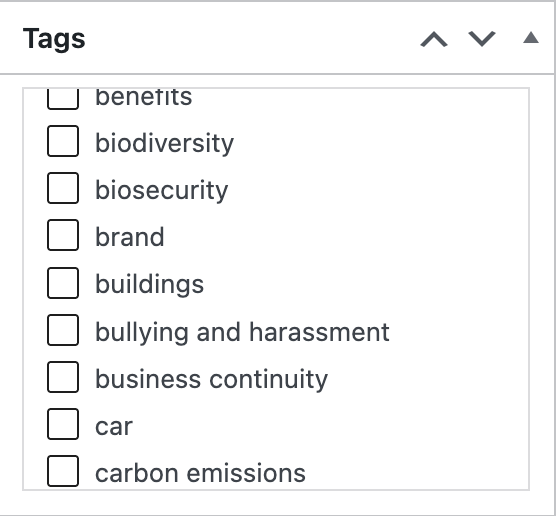
When choosing a tag, think about the other content on the intranet that should share it. If you have pages on room booking, prayer rooms, changing rooms and interview rooms, a single “rooms” tag brings them together. Only administrators can create tags; everyone else picks from a checklist. See Learn how tags work.
Keywords: hidden words for search
The Keywords box sits under the editor on news stories, news updates, pages, tasks, blog posts, events, projects, vacancies, teams and training courses. Staff never see what you type there. Use it for the words people type into search that do not already appear in the title or the content: synonyms, acronyms, old names, common misspellings and jargon. A page called “Claim travel costs” might have the keywords “expenses T&S subsistence mileage reimbursement”. There is no need to repeat words that are already on the page.
Separate keywords with spaces. Commas are allowed but are turned into spaces when the page is saved, so a phrase is simply several words. It is fine to leave the box empty.
What reads the Keywords box
- Search. Govintra search is built on Relevanssi Premium, and Relevanssi decides which custom fields to index. On its Indexing tab, the Custom fields setting must be “Index visible custom fields only”, “Index all custom fields”, or a specific list that includes
keywords. If it is set to “Do not index custom fields”, the box is ignored by search. After changing that setting, rebuild the index. See Search options. - The A to Z index. A word in square brackets is added as its own entry in the A to Z. Keywords of
[Travel] [T&S]on the expenses page list it under T as well as under its title. See Add an item to the A to Z index. - The Content report. The Govintra Content report plugin shows a Keywords column, which is a quick way to see which pages have none. See (Govintra) Content report.
- Search suggestions under the search box match titles only, not keywords.
- Agento Intelligence does not read the Keywords box when it indexes tasks, pages or news. It works from the title, summary and content, so the words people search for should be in the text itself. The only exception is training courses and projects, where it includes all the extra fields, Keywords among them.
Keywords are not the same as pinned search terms
Relevanssi Premium adds a separate Pin this post box with its own list of words. A page pinned for a word is forced to the top of the results for that word, ahead of better matches. Keywords only make a page findable; pins make it win. Use pins sparingly. See Promote items in search results.
Quick comparison
| Tags | Keywords | |
|---|---|---|
| Seen by staff | Yes, as pills on the page and on the tag’s own page | No |
| Purpose | Group related content across every kind of content | Help search and the A to Z find the page |
| Who sets them | Administrators create them; publishers pick from the list | Anyone editing the page types them freely |
| Good example | wellbeing, rooms, induction | synonyms, acronyms, old names, misspellings |
| Used by | Tag pages, related cards, filters, shortcodes, widgets | Relevanssi search, the A to Z index |