
The A to Z is an index of the intranet by first letter. Each letter has its own page, such as /a-to-z/a/, listing every page, task, team, project and training course filed under it, with the word that earned it the entry shown in bold. Staff reach it from the A to Z widget or a menu link. Unlike search, the A to Z only shows what you have deliberately filed, so it needs a little upkeep as content is added.
Switch the A to Z on and create the letters
The A to Z is a module. Go to Options, then Modules, and switch on A to Z. An A to Z letters list then appears in the admin menu under Pages, Tasks and the other content types it applies to.
Letters have to exist before anyone can tick them. Go to Tasks (or Pages), then A to Z letters, and add a letter with the capital letter as its name, for example B. The slug becomes the lower-case letter by itself, which is what the letter page address and the widget rely on, so do not change it. Only Administrators can add, rename or delete letters; everyone else, Editors included, can only tick existing ones. Add the letters as you need them, or all 26 at the start.
File an item under a letter
- Edit the page, task, team, project or training course.
- In the A to Z letters box in the right-hand column, tick each letter the item should be listed under.
- Select Update.
Only published items are listed. A letter with nothing published under it is greyed out in the letter bar, so an item saved as a draft, or ticked under a letter that none of its words starts with, does not appear.
Which word becomes the entry
On a letter page each item is listed by its title, and the theme looks for words in the title that start with that letter. Every such word is shown in bold, and the first of them becomes the entry word the item is grouped and sorted under. So “View the lunch menu” can be ticked under V, L and M, and appears on each of those pages with view, lunch or menu in bold.
Two rules decide whether a word counts:
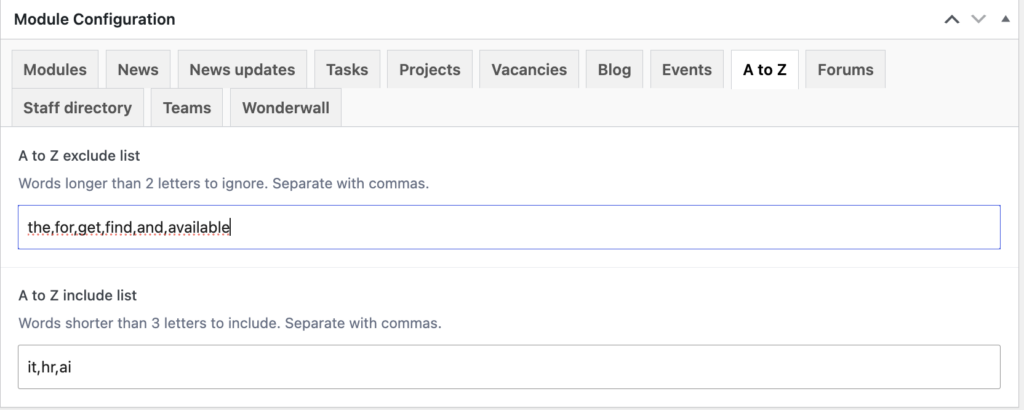
- It must be at least three letters long, unless it is on the A to Z include list. Short words such as HR and IT are usually added there so that “HR policies” can be filed under H.
- It must not be on the A to Z exclude list, which holds words such as “the”, “for” and “and” that are never useful entries. Add your organisation’s name if it appears in many titles.
Both lists are in Options, then Modules, on the A to Z tab: see Module settings and options. Items with the same entry word are grouped under a heading, and a singular and its plural count as one group, so “expense” and “expenses” sit together.
Add an A to Z entry for a word that is not in the title
People may look for the lunch menu under C for “canteen”, even though the word is not in the title. Use the Keywords box under the editor: put the alternative wording in square brackets, for example [Canteen menu], then tick C in the A to Z letters box. On the C page the item is listed as “Canteen menu” with Canteen in bold, linking to the task. Add as many bracketed entries as you like, each in its own brackets, and tick the matching letters.
The bracketed entries are only consulted when no word in the title starts with the ticked letter, and they follow the same three-letter, exclude-list and include-list rules. Do not put brackets in the title itself: anything in square brackets in a title is hidden on the intranet, because editors use it for status notes.
The rest of the Keywords box, and the bracketed entries too, are also used by intranet search when Relevanssi is set to index custom fields, so there is no harm in an entry doing both jobs. Keywords are not tags: see Find out the difference between tags and keywords.
Show the A to Z to staff
- The (Govintra) A to Z widget shows a bar of letters, with letters that have entries as links and the rest greyed out. Put it in a homepage column, a page sidebar or the search results sidebar. It needs the (Govintra) A to Z widget plugin: see (Govintra) A to Z.
- Add a menu link to a letter page, such as /a-to-z/a/. Every letter page carries the full letter bar.
- The Training courses page has its own A to Z of courses, built from the same letters.
Documents are separate
Files in the media library cannot be filed in this A to Z. The document finder has its own Media A to Z for that: see Add documents to the document finder.