A tag is a topic label that cuts across every kind of content on the intranet. A “wellbeing” tag can sit on a news story, a task, an event and a training course at the same time. Selecting the tag takes staff to a page listing everything with that label, whatever kind of content it is. Tags are not the same as the Keywords box, which is only for search: see Find out the difference between tags and keywords.
Which content can have tags
News stories, news updates, blog posts, events, tasks and guides, projects, teams, training courses and vacancies all have a Tags box on their edit screen. Standard WordPress posts have one too. Pages do not have tags unless a plugin such as Page Tagger adds them. An administrator can also tag a member of staff on their profile, under User tags, which is how groups such as first aiders or fire wardens are listed with the [usertags] shortcode.
Who can create tags
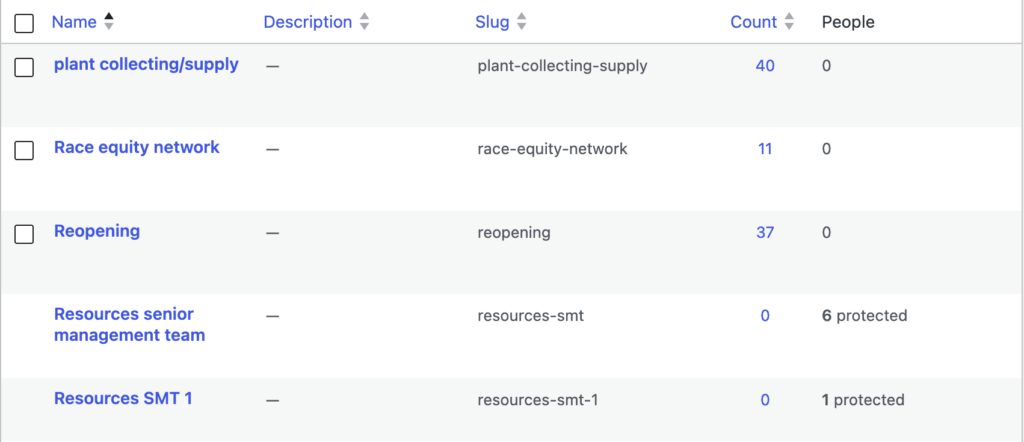
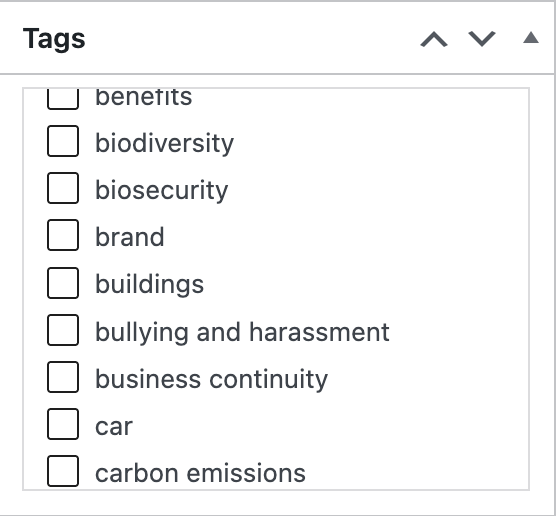
Administrators see the normal WordPress Tags box: type a tag and press Enter, or choose from the most used tags. Everyone else, including editors, sees a checklist of the tags that already exist and can only tick them. Editors, authors and contributors cannot open the Tags admin screen either. So an administrator decides the list of tags, and publishers choose from it. Agree the list first, keep tags in lower case, and prefer one broad tag such as “rooms” over several narrow ones.
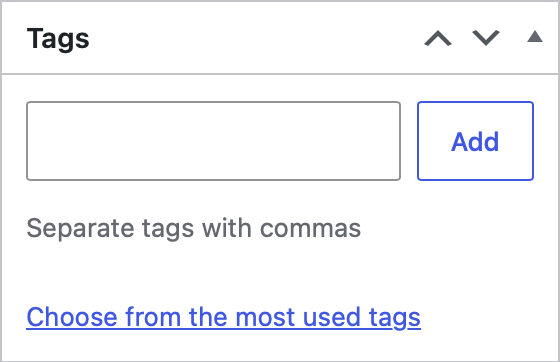
To add or rename a tag, or to give it a description, go to Tags under any content menu, such as News or Tasks. The description appears at the top of the tag’s page. See Taxonomies: Tags.
The Tags screen has a Staff column showing how many staff profiles carry each tag. A tag in use on a profile is marked “protected” and cannot be deleted until it is removed from those profiles.
What staff see on a tagged page
A news story, news update, blog post, event, task or project shows a Tags box in its sidebar, with each tag as a small outlined pill. Selecting a pill opens the tag page, already filtered to that kind of content, so a tag pill on a news story lists other news with the same tag. On a training course, the pills go to the training catalogue filtered by that tag instead.
The tag page
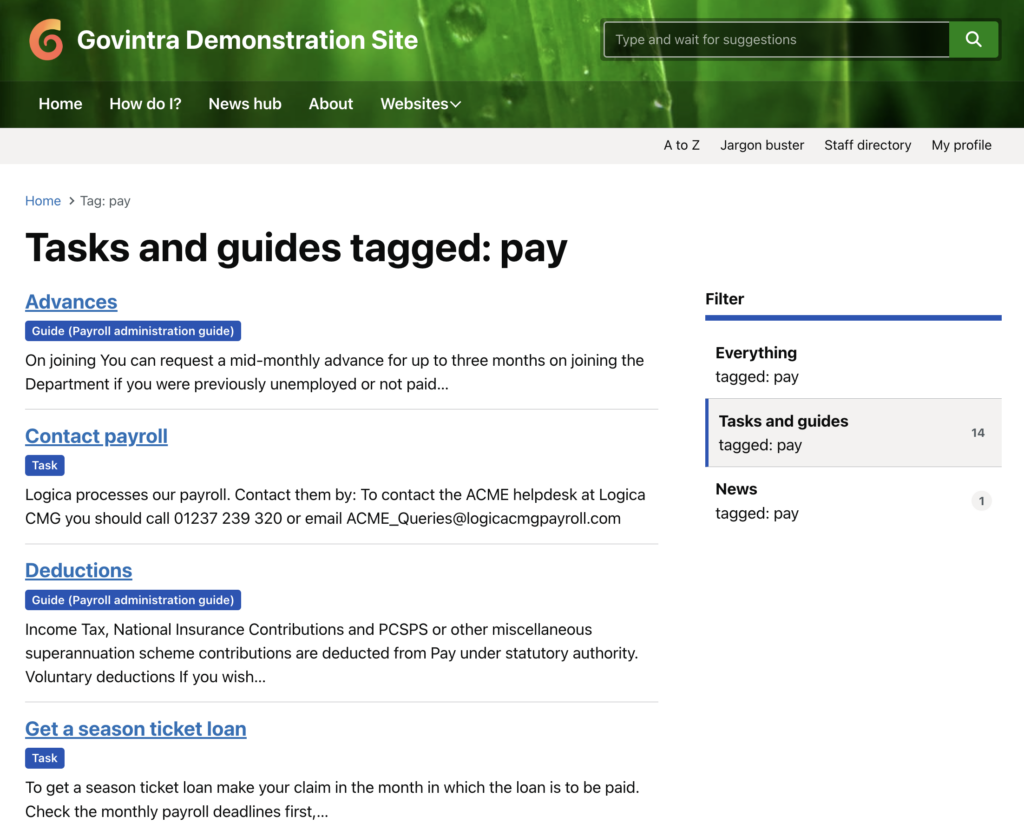
Every tag has its own page, usually at /tag/tag-name/, headed “Everything tagged: wellbeing” and showing the tag’s description if it has one. Content is shown as cards, newest first, ten to a page (the number comes from Settings, Reading).
A Filter list on the right offers Everything, then one entry with a count for each kind of content that has published items with the tag: Tasks and guides, Projects, Job vacancies, News, News updates, Blog posts, Events, Training courses, Pages and Posts. With a filter chosen, the heading becomes, for example, “News tagged: wellbeing”. Tasks and training courses are then listed A to Z, events by start date, everything else newest first.
Filter a category page by tag
Task category pages can show a row of Filter by tag pills above the listing, one for each tag used by tasks in that category. Staff select a pill to narrow the list, or All to clear it. Switch it on with Allow category filter by tag under Options, Modules, in the Tasks section. It is off by default. See Module settings and options.
The training catalogue page has a similar tag filter of its own, built from the tags on published courses.
How tags drive related content
At the foot of a news story, blog post or event, the theme shows up to three automatic cards under “More news”, “You might be interested in” or “Similar events”: the newest items of the same kind that share a tag or a category with the one being read. For events, only upcoming events are offered. Anything picked by hand in the Related content box is left out of the automatic cards so it is not shown twice.
Tasks, projects, training courses and vacancies do not get automatic cards. Their sidebar Related box shows only hand-picked items and content that lists this item as related.
Shortcodes that use tags
Tags are the usual way to gather content onto a page. The shortcode button on the editor toolbar fills these in for you. Use the tag’s slug: lower case with hyphens, as shown in the Slug column on the Tags screen.
: a grid of cards for everything with the tag, of any kind. See Display a grid of tagged pages.: a short list of one kind of content with the tag. See Display a list of posts by content type and tag.and[listevents]accepttag="wellbeing"as an optional filter.[usertags tag="first-aider"]: staff cards for everyone tagged on their profile. See Display a list of users by tag.
Widgets, templates and ultraverts that use tags
- The Most recent and Most liked widgets each have a Filter by tag setting, so a homepage widget can show only tagged items. See Available widgets.
- The Hashtags page template builds a card feed from one tag, with highlight pages mixed in. See Hashtags template.
- An ultravert can be targeted by tag: set Target by to Tag and it appears on any content with that tag and on the tag’s own page.
- Listing blocks on a page using the Aggregator page template can match on tags as well as teams and categories.
Keep the tag list healthy
Tags only work if publishers reuse the same ones, so review the list now and then. The Tags screen shows the count for each tag; merge near-duplicates such as “wellbeing” and “well-being” by re-tagging the content and deleting the spare. If Agento Intelligence is installed, its settings screen offers Download tag audit (CSV), which groups tags that look like duplicates and shows how much each is used.