
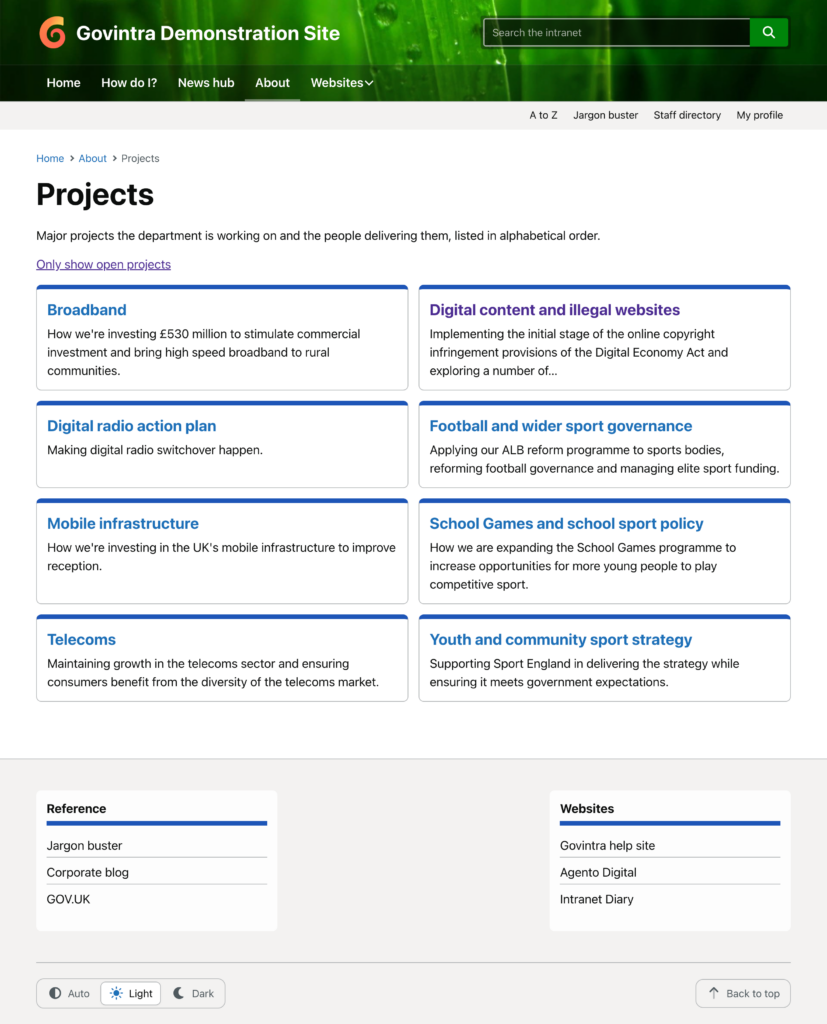
The Projects listing template turns a page into the intranet’s list of projects: a grid of cards, one per project, each with its featured image, a short description and a status label. By default it shows only open projects. A Show all projects link reveals the past ones too. It needs the Projects module to be switched on, and it is normally applied to a single page called “Projects” that is linked from the main menu. Writing and editing the projects themselves is covered in Add or edit a project.
Create the Projects page
- Go to Options, then Modules, and tick Projects. This adds a Projects menu to the admin sidebar and a Projects tab to the same screen. See Module settings and options.
- Go to Pages, then Add New. Give the page a title such as “Projects” and, in the Page Attributes box, set Template to Projects listing. See Change a page layout. Anything you type in the editor appears under the page title and above the list, so it is the place for a sentence on what counts as a project and who to contact to add one.
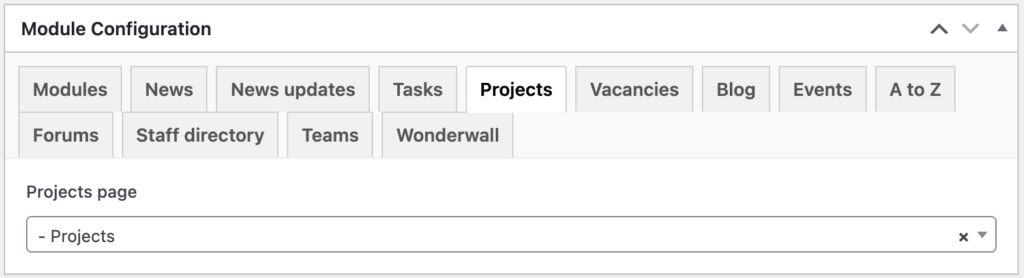
- Publish the page, then go back to Options, Modules, open the Projects tab and choose the page as the Projects page. Project pages use it for their breadcrumb back to the list.
- Add the page to a menu. See Setup navigation menus.
The Projects page option is the only setting for this template. There is no widget area on the listing page and no sidebar.
What the Projects page shows
The page title, any content from the editor, then a Show all projects link, then the cards in two columns. Each card shows the project’s featured image if it has one, its title, the first twenty words of its excerpt, and its status as a rounded label. Selecting anywhere on a card opens the project.
The cards are in alphabetical order of each project’s web address, which WordPress sets from the title when the project is first saved. The page shows as many cards as the Blog pages show at most setting under Settings, Reading allows, ten unless it has been changed, with page links below for the rest.
Only top-level projects are listed. A multi-part project with pages under it, such as a Background or Timetable page, appears once, as its parent, and the parts are reached from the contents list on the project page.
If nothing matches, the page says “No projects found.”
Open projects and past projects
The page opens on open projects only. The Show all projects link switches to every project, open and past together in one alphabetical list, and turns into an Only show open projects link to switch back. Whether a project is open or past comes from the Status and End date in its Project details box:
- Active or Paused: open, and it stays on the Projects page even after its end date has passed. An overrunning project does not vanish.
- Completed or Cancelled: past, as soon as the project is saved, whatever the end date says.
- No status: the end date decides. The project is open until the day after its end date. With no end date either, it stays open indefinitely.
A new project starts as Active. Projects brought over from an older version of the intranet have no status until someone sets one, so they follow their end dates. When a project finishes, set its status to Completed; leaving it Active keeps it on the list for good.
What each card takes from the project
- Image: the project’s Featured image. A project without one shows text only, so the grid looks tidier when every project has an image. See Set a featured image.
- Description: the project’s Excerpt, cut to twenty words. With no excerpt, the opening words of the main content are used instead. See Generate an excerpt.
- Status label: the Status from the Project details box. A project with no status shows no label.
Why a project is missing from the list
- Its status is Completed or Cancelled, or it has no status and its end date has passed. Select Show all projects to see it.
- It is a part of a multi-part project. Only the parent is listed.
- It is a draft, pending or private, or it is on a later page of the list. Cards are ordered by web address, so a project renamed after it was first saved sits where its old name would; edit the web address under the title to move it.
Where else projects appear
Projects are included in the intranet search, with a Projects filter on the results page. The (Govintra) Most recent widget can include projects among the latest content, leaving out the parts of multi-part projects. A project’s tags link to a list of projects with that tag; see Learn how tags work. There is no shortcode for listing projects inside another page, and the Project Sidebar widget area under Appearance, Widgets appears on individual project pages, not on the listing.
Who can do what
Contributors can write projects but not publish them. Authors can publish and edit their own. Editors and administrators can publish, edit and delete any project. Only administrators can see the Options screens and so choose the Projects page. See Roles and capabilities.
Related
- Available templates: every page template in the theme.
- Add or edit a project: the project edit screen, dates, status and team members.
- Module settings and options: switching the Projects module on.