
The Most Recent widget shows the newest content on the intranet as a list of links. You choose which kinds of content to include, how many links to show, and whether an item should return to the top of the list when it is updated. You can limit the list to one tag and leave out particular items.
Add the Most Recent widget
- Go to Appearance > Widgets.
- Add (Govintra) Most Recent to a widget area, such as a home page column or a sidebar.
- Complete the settings below and select Save.
Most Recent widget settings
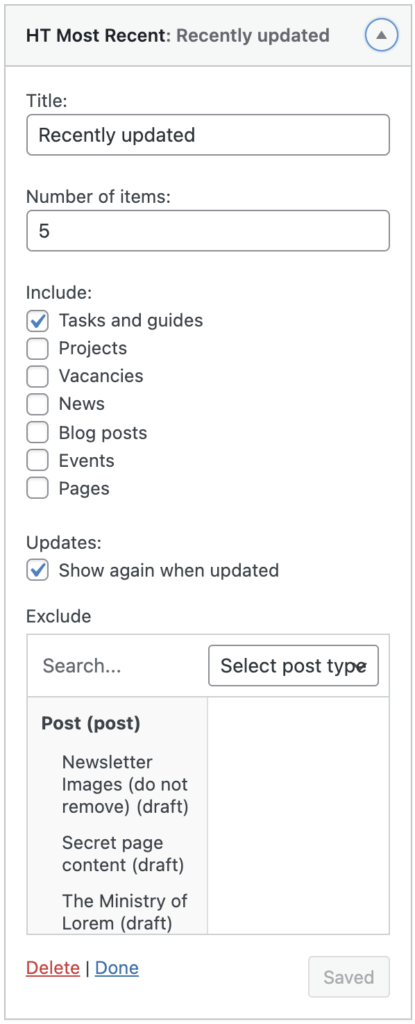
Title: the heading shown above the list. Leave it blank for no heading.
Number of items: how many links to show, from 1 to 20. The default is 5.
Include: tick each kind of content to list. The choices are Pages, Tasks and guides, Projects, Vacancies, News, News updates, Blog posts, Events and Training. A kind of content only appears here when its module is switched on.
Show again when updated: tick this to order the list by the date each item was last updated, show that date after each link, and add a NEW label to items that have just been published. Leave it unticked to order by publish date only. See “How the list is ordered” below.
Cache (minutes): how long to keep the list before rebuilding it. Leave it at 0 to rebuild on every page view. A cached list does not change until the time is up, so a new item can take up to this many minutes to appear. Saving the widget clears the cache.
Filter by tag: show only items that carry this tag. Leave it empty to list everything. This is how a widget for one subject, such as Health and safety, is set up: tag the content, then choose the tag here.
Exclude: pick items that should never appear, such as a page that is edited often but is not news.
How the list is ordered
With Show again when updated unticked, the newest published items come first, by publish date. Editing an item does not move it. No dates or labels are shown. With Show again when updated ticked, the list is ordered by the date each item was last saved, and that date is shown after the link. An item that is edited moves back to the top, so the list mixes new content with updates to older content. Only the number of items you set areshown, so a new item can be pushed off the list by several updates to older items on the same day.
The NEW label
The NEW label appears only when Show again when updated is ticked. An item gets the label when it has not been edited since the day it was published. Editing it on a later day removes the label and moves the item to the top of the list as an update. Fixing a typo on the day of publication keeps the label.
Scheduled content: from theme version 5.3.47, an item published on a schedule counts as new on the day it goes live. On earlier versions a scheduled item kept the date of the editor’s last save, so it could appear below older updates and without the NEW label. On those versions, open the item on the day it goes live and select Update to correct it.
What the Most Recent widget leaves out
- Pages within a project. Only the main project page is listed.
- The intranet’s own landing pages, such as the home page, the How do I page, the news and blog pages, the A to Z and the About page.
- Anything chosen in Exclude.
- Content that is not published, such as drafts, scheduled items and items in the bin.
A page that belongs to a guide is listed with the guide’s name in brackets after its title.
Show new content and updates separately
One widget can only show a fixed number of items, so on a busy tag the newest item can be crowded out by updates to older items. To make sure new content is always visible, add two Most Recent widgets with the same tag:
- one with Show again when updated unticked, headed for example “New”, which lists only the newest published items;
- one with Show again when updated ticked, headed for example “Recently updated”, which shows updates with their dates.