
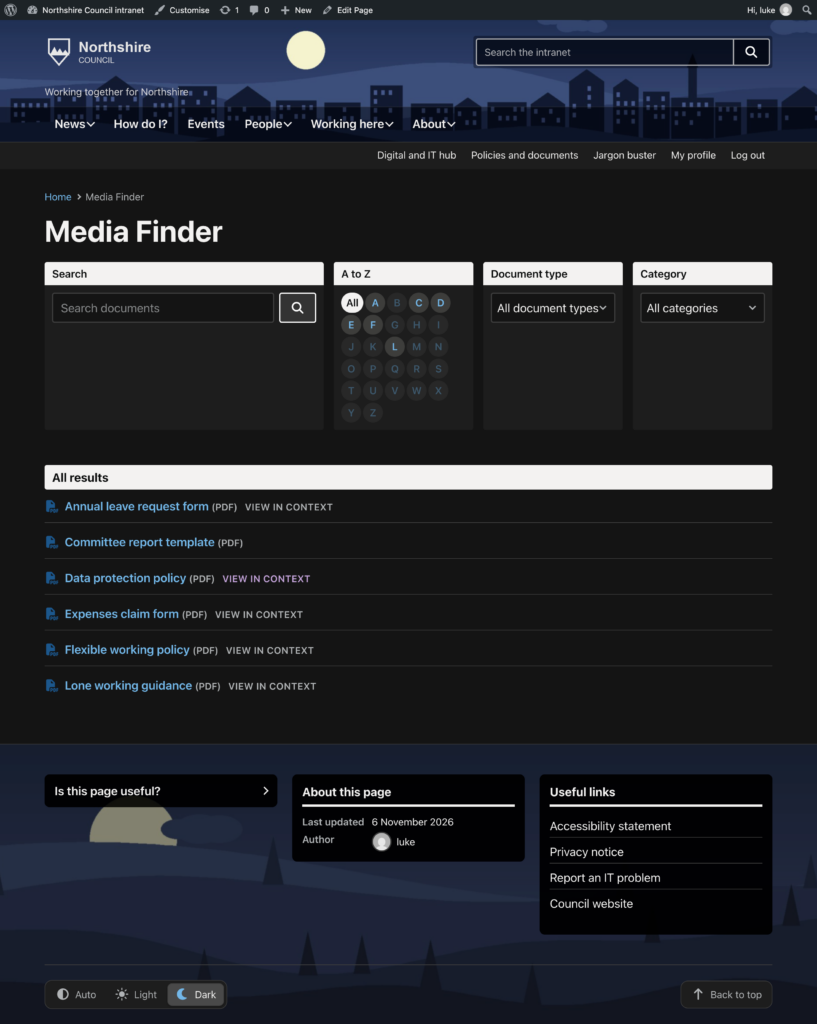
The Media A to Z template turns a page into a document finder: a searchable, filterable list of files from the Media Library, with the filters in a row across the top. It comes from the (Govintra) Media A to Z plugin, which must be installed and active; see (Govintra) Media A to Z. The plugin adds a second template, Document finder, which is the same page with the filters in a left-hand column; see Document finder template. It is normally applied to a page called Documents or Forms. Edit the page and choose Media A to Z under Page Attributes, Template. There is no Options setting for this page.
Filters box on the page
Once the template is chosen and the page saved, a Filters box appears below the editor.
- Show filters: tick which of Search, A to Z, Document type and Category to show. At least one is required; a new page shows all four.
- Show page links: off by default. On, each result gets a link to the page the document belongs to.
- Link text: appears when Show page links is on. The wording of that link; the default is “View in context”.
How documents are classified
The plugin adds three ways to classify files in the Media Library, all set on a file’s edit screen (Media, Library, select the file, then Edit more details).
- Media A to Z: the letter the document is filed under. Administrators create the letters as needed under Media, Media A to Z, one entry per letter, named and with a slug of the single letter. Only letters that exist are offered on the page.
- Document types: kinds of document, such as Policy, Form or Template, managed under Media, Document types.
- Categories: the same categories used for tasks, which the plugin makes available on files.
Contributors, authors and editors can assign these; only administrators can add or rename them.
What the page shows
The page title, any content typed into the page’s editor, the filters, then the results. Search matches titles, captions and descriptions of files, using standard WordPress search of the Media Library. A to Z shows All and the letters; in this template a letter is ignored while a search term is entered. Document type and Category are menus; the category menu lists only categories that have documents. Active filters appear as pills with a cross to remove each, plus Reset filters. A heading says “All results”, the number of results, or “No results”.
Results are listed alphabetically by title, 25 per page, each with an icon for its file type. Selecting a result opens or downloads the file itself. With Show page links on, a View in context link goes to the page the file was uploaded to and to any page that lists it in its Document attachments box; where there are several, the link expands into a list of page names.
What appears with no filter chosen
Documents that have a document type or a category. A document classified only by an A to Z letter appears once its letter is selected. To make sure every document shows on first arrival, give each one a document type.
What the page draws on
Files in the Media Library of any type, including PDFs, Word and Excel documents and images, together with their Media A to Z letter, document type and categories. Files are added under Media or while editing a page; see Add links to pages including documents and email address links.
Related
- (Govintra) Media A to Z: the plugin.
- Document finder template: the sidebar layout.
- Available plugins