
The How do I? template turns a page into the task finder: a search box for tasks and guides, the list of categories to browse, and a set of tags. It is normally applied to a page called How do I? and linked from the main menu. To apply it, edit the page and choose How do I? under Page Attributes, Template. Then go to Options, Modules, Tasks and choose the page as the How do I? page, which is used for breadcrumbs and menu highlighting. The Tasks and guides module must be on. If the page comes up empty, see My How do I? page doesn’t show anything.
What the How do I? page shows
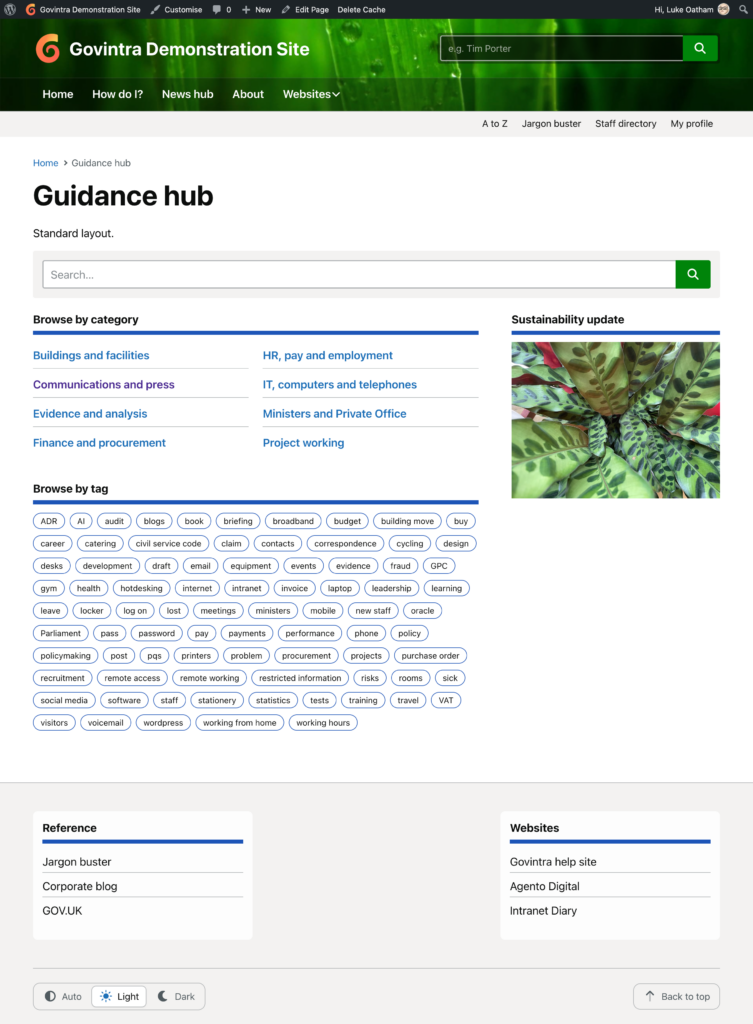
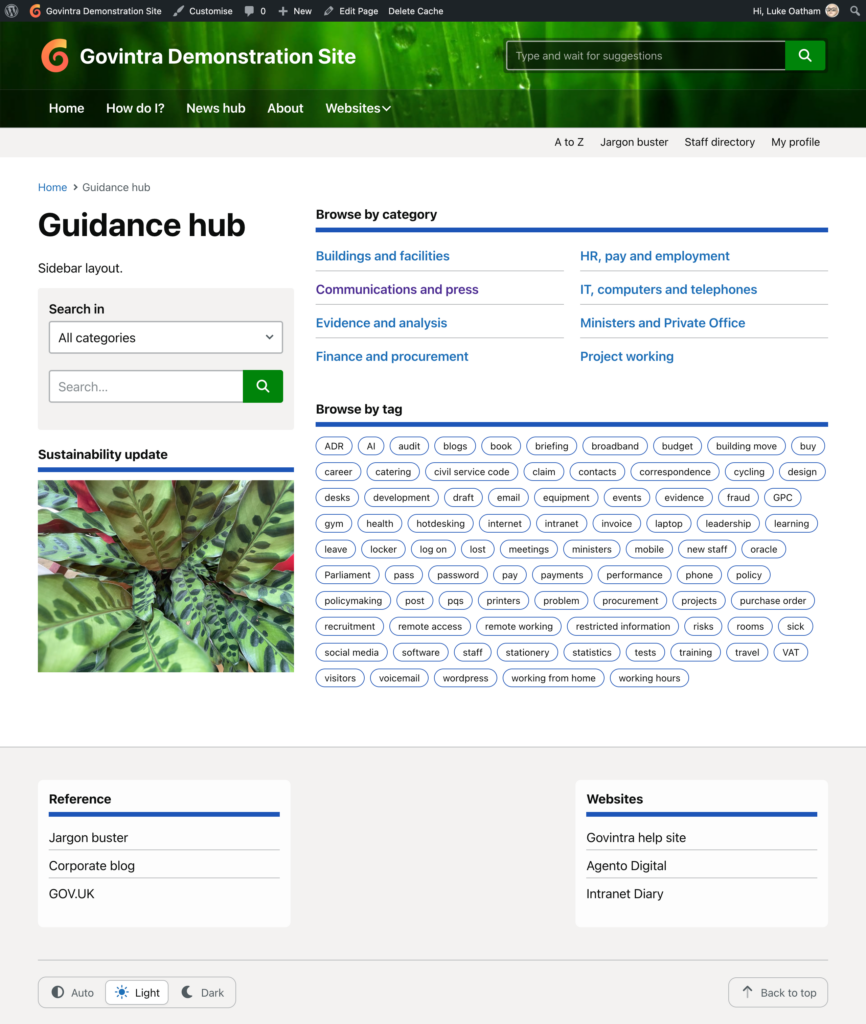
The page title, any content typed into the page’s editor, a search box, a Browse by category section, a Browse by tag section and, where the layout allows, a sidebar. The order and arrangement depend on the layout chosen on the page.
Search box on the How do I? page
The search box sends people to the intranet search results, limited to tasks and guides, with the Tasks filter already applied. This limit relies on the Relevanssi Premium plugin. In the Sidebar and Grid layouts a Search in menu sits beside the box, so people can limit the search to one top-level category as well.
Browse by category
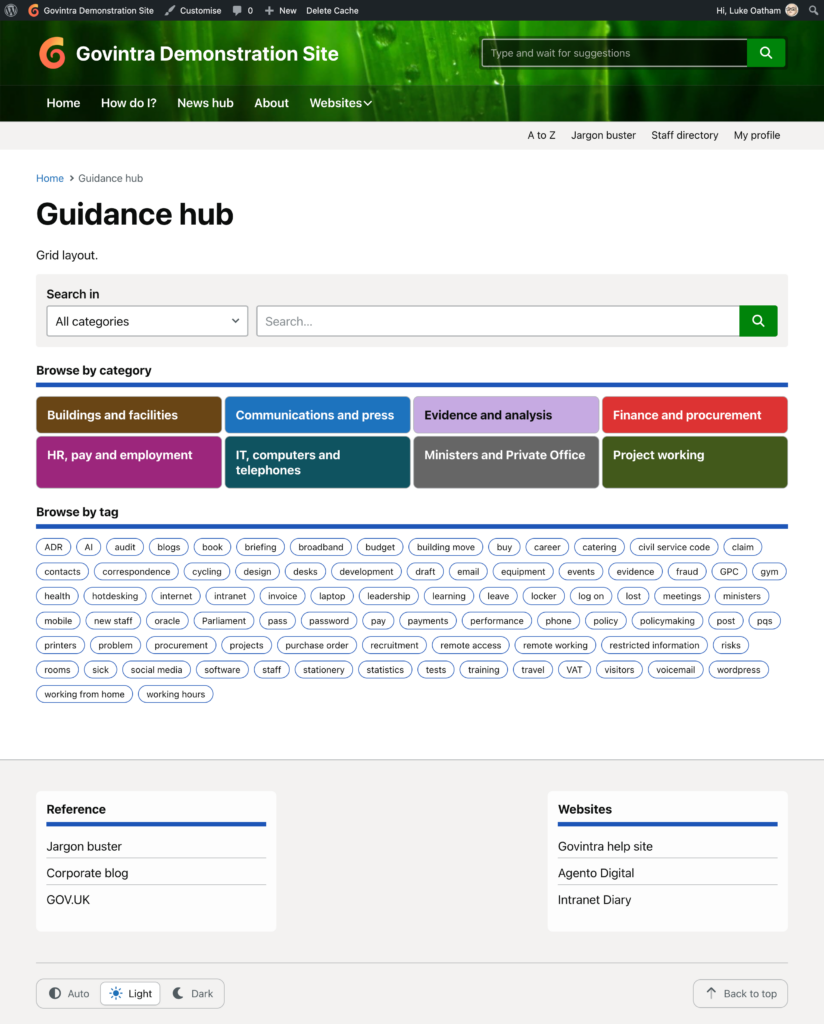
Every top-level category that has at least one published item is listed in alphabetical order, with its description after the name if one has been written. Uncategorised is never shown. Each link goes to the category page, which lists the tasks in that category. With more than three categories the list is split into two columns. Categories are managed under Tasks, Categories; see Categories.
The category edit screen has a Category settings box. Background colour colours that category’s tile in the Grid layout and the heading of its category page. The text is made black or white automatically to suit the colour. Long description appears on the category page under the title.
Browse by tag
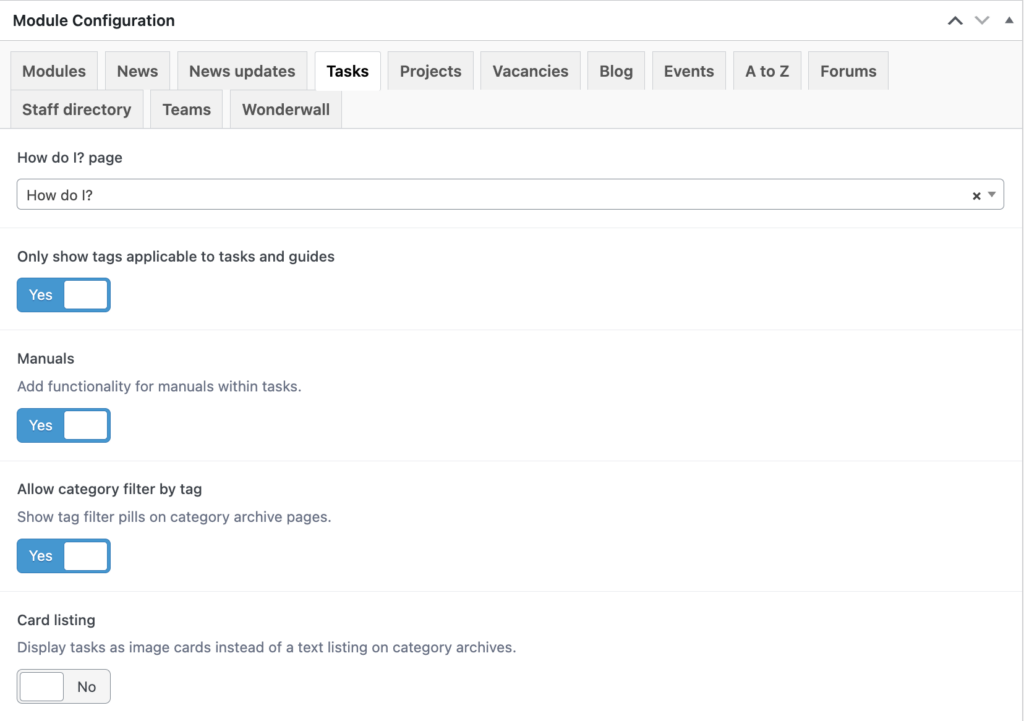
What appears here depends on Only show tags applicable to tasks and guides, under Options, Modules, Tasks. Off by default.
- On: only tags used on published tasks and guides, in alphabetical order, as plain buttons. Each goes to the tag page showing only tasks with that tag.
- Off: the standard WordPress tag cloud of every tag on the intranet, whatever content it is used on, sized by how often each is used.
The tags are cached, so a new tag can take up to 15 minutes to appear. See Tags.
Layout of the How do I? page
The How do I options box on the right of the page edit screen has one setting, Layout, which appears once the template has been chosen and the page saved.
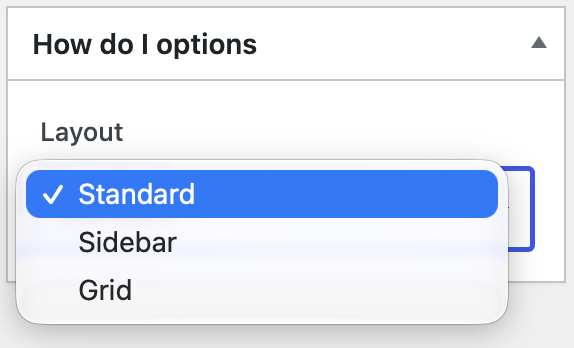
- Standard (the default): full-width search box, then categories and tags on the left with the sidebar on the right.
- Sidebar: search box and sidebar on the left, categories and tags on the right.
- Grid: full-width search box, categories as a grid of coloured tiles four across, tags underneath, sidebar at the bottom.
Sidebar and widget area
The sidebar is made up of the page’s own Sidebar content box (below the editor) followed by the Tasks Landing widget area, under Appearance, Widgets. It only appears when one of them has something in it. Intraverts, the Most recent widget filtered to tasks, or a feedback widget suit it. The separate Task Sidebar area appears on each task’s own page.
What the page draws on
Tasks and guides, added under Tasks in the admin menu, with their categories and tags. Only published tasks count. See Add or edit a guide. The How do I widget puts the same search box on the homepage or in any widget area.
Related
- Module settings and options: the other Tasks settings, including tag filters and card listings on category pages.
- My How do I? page doesn’t show anything