
This utility plugin adds a Remove Users option to the Tools menu.
This tool safely reassigns content to another user, including comments and media library images and documents. Under Reassign content to, choose the person to hand the content to. To find them, type in Search by name or email. Once you have removed someone, the tool remembers your choice for next time.
Use this feature to bulk remove user accounts using a list of email addresses or usernames. Paste email addresses/usernames, each one on a new line. For example:
stan-baxter
glen.amazon@acme.gov.uk
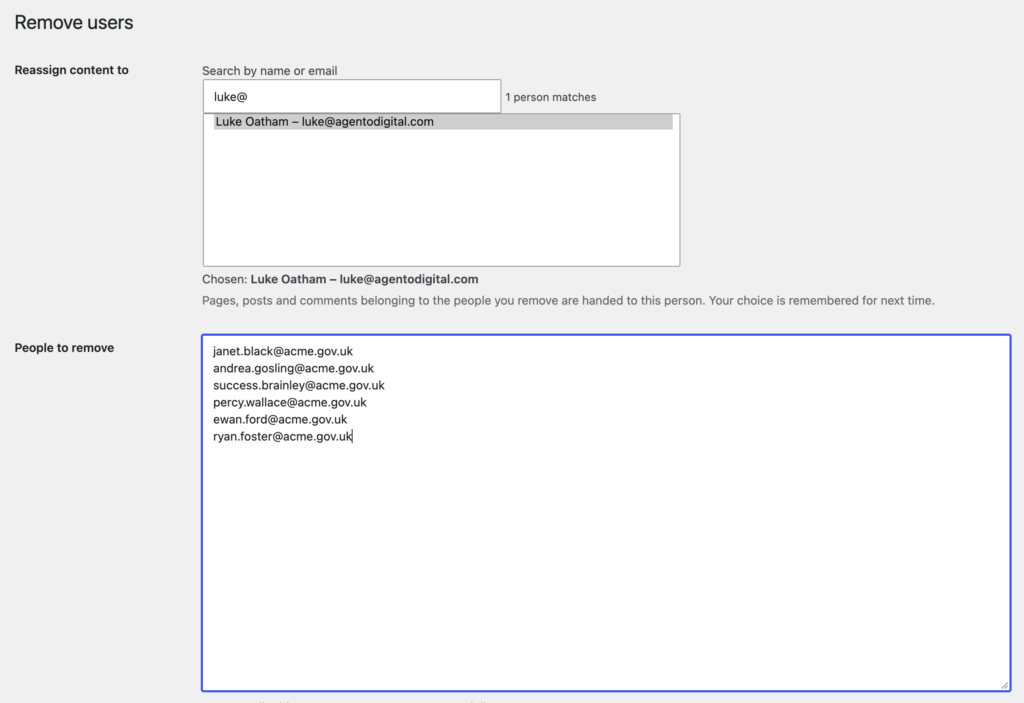
Remove users
- Go to Tools, Remove users.
- Under Reassign content to, choose the person who should get the content of the people you remove. To find them, type in Search by name or email.
- Under People to remove, paste the email addresses or usernames, one on each line.
- Select Check the list. Nothing is removed yet.
- Read the Check the list screen. Lines that will be skipped lists any line that matches no account, and any line that is you or the person getting the content. The table shows the Name, Username, Email and Role of each person who will be removed, and the line you pasted for them under Pasted as. Anyone listed twice appears once.
- Select Remove these N people (the button shows the number, or Remove this person for one) to remove them. To change the list instead, select Back.
Removing people cannot be undone.
After removal, a Summary lists any Errors and, under Removed, the username and email address of each person removed, with a Back button to return to the tool.