
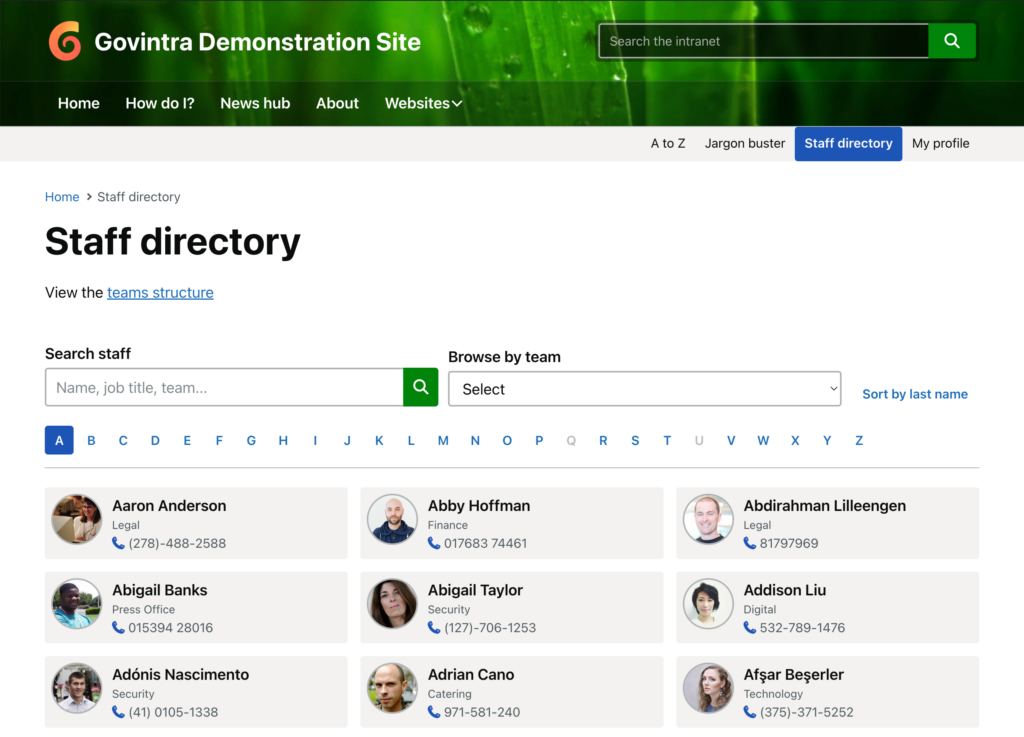
The Staff directory template turns a page into the A to Z of colleagues: a letter bar, a staff search box, a team menu and a grid of staff cards linking to people’s profiles. It is normally applied to a page called Staff directory or People. To apply it, edit the page and choose Staff directory under Page Attributes, Template. Then go to Options, Modules, Staff directory and choose the page as the Staff directory page, used for breadcrumbs and menu highlighting. The Staff directory module must be on. For profiles, roles and fields, see Setup the staff directory.
What the staff directory page shows
The page title, any content typed into the page’s editor, then the Search staff box, the team menu, the sort button, the A to Z letter bar and the staff cards for the current letter. There is no sidebar or widget area on this template.
Who is listed in the directory
Every user whose profile has both a first name and a last name, whatever their role, unless Hide from directory is ticked on their profile. Someone with either name missing is not listed at all, which is the usual reason a colleague seems to be missing; fill in both names under Users. See Hide users and Problems with the staff directory and profiles. The lists are cached for speed and refreshed automatically when a profile is saved.
Browse by letter
The letter bar shows A to Z. Letters with at least one person are links; the rest are greyed out. On arrival the first letter with people is shown. The letter is the initial of the first name, or of the last name when the directory is sorted by last name. Selecting a letter loads that group without reloading the page, and the page address updates, so a letter can be bookmarked or linked to.
Sort by first or last name
The Directory name order option, under Options, Modules, Staff directory, sets whether the directory, team pages and staff listings open sorted by first name or by last name. The default is first name. On the directory a button reading Sort by last name (or Sort by first name) lets anyone switch, and the letter bar switches with it.
Search staff
The box at the top sends people to the intranet search results with the Staff filter applied, so only colleagues are shown. Staff search needs the Relevanssi Premium plugin with user profiles included in its index; without it the Staff filter is not offered. See Search options.
Browse by team
When the Teams module is on and team pages exist, a menu lists every top-level team with its sub-teams indented beneath. Choosing one goes to that team’s page. The label above the menu is the Team dropdown name option; the default is “Browse by team”.
What each staff card shows
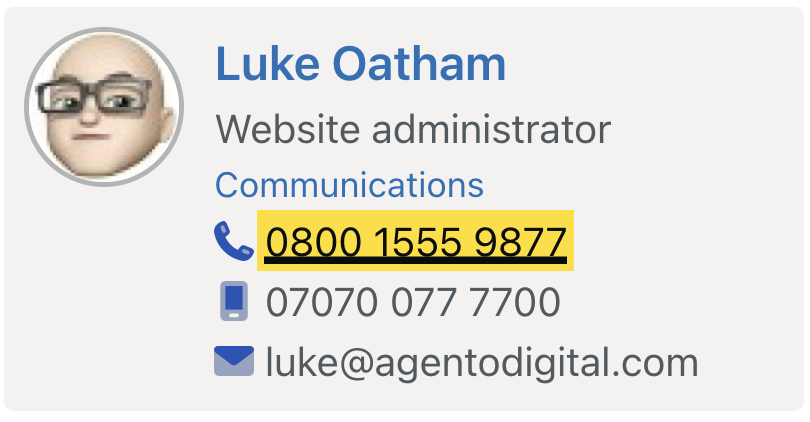
Photo, name, job title and the person’s teams, plus their telephone number. Three options add more: Show grade on staff cards adds the grade under the job title (grades are set on each profile from the list under Users, Grades); Show mobile on staff cards adds the mobile number; Show hyperlinks on staff cards changes the card from one link to the profile into separate links, with the name and photo going to the profile, teams to their team pages, phone numbers dialling, and the email address shown as a link. Show circular avatars and Default avatar control the photo shape and the image used for anyone without a photo. Profiles live at /staff/username/.

Options that affect the directory
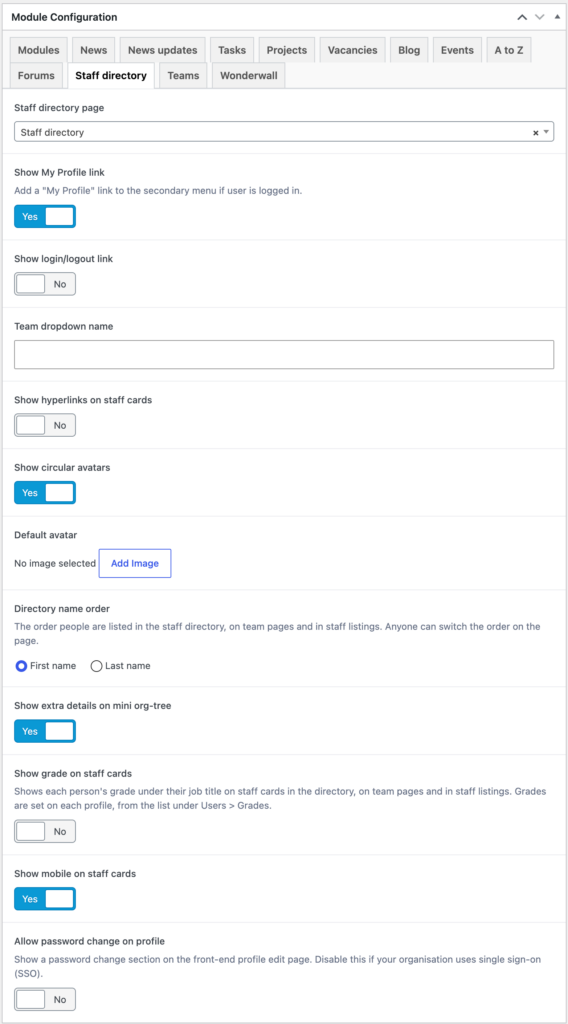
All under Options, Modules, Staff directory: Staff directory page, Team dropdown name, Show hyperlinks on staff cards, Show circular avatars, Default avatar, Directory name order, Show grade on staff cards and Show mobile on staff cards. The rest of that tab (My Profile link, login link, org tree, password change) affects profiles and navigation rather than this page. See Module settings and options.
What the page draws on
User profiles: first name, last name, job title, team, grade, telephone, mobile, email and photo, all edited under Users or by the person on their own profile. Team names come from the Teams module.
Related
- Setup the staff directory
- Grade
- Display a list of users by team or an individual user: staff cards on any page.