
The Events page lists your upcoming events and lets staff switch between a list, a week grid and a month grid. Setting it up takes one page, one template and two Options settings. An administrator does this once. For what the finished page looks like, see the Events template.
Switch on the Events module
Go to Options, then Modules, and switch on Events. Select Update. An Events menu appears in the left-hand admin menu and an Events tab appears on the Modules screen. See Module settings and options.
Create the Events page
- Go to Pages, then Add New, and call the page Events.
- In the Page Attributes box, set Template to Events listing.
- Optional: type an introduction in the main editor. It appears under the page title, above the layout icons and buttons.
- Select Publish.
There is one events template. The old “Events (inc past)” template no longer exists. Past events are controlled by the two settings described on this page.
Choose the Events page in Options
Go to Options, then Modules, open the Events tab and choose your page under Events page. Select Update. This setting powers the More events link at the bottom of the Events widget, the event type links in the sidebar of every event page, and where staff land when they select an event type anywhere on the intranet. Until it is set, those links go nowhere useful.
Events listing options on the page
Edit the Events page. The Events listing options box in the right-hand column only appears on pages that use the Events listing template.
Show past events
Off by default. Switch it on to add Upcoming and Past events buttons to the list view, and to let staff move back to earlier weeks and months in the week and month views. When it is off, the page shows only events whose start date is today or later, and the week and month views cannot go back beyond the current week or month.
Default layout
The view staff see when the page first loads: List view (the default), Week view or Month view. Staff can change view with the three icons at the top of the page. Their choice is not remembered between visits.
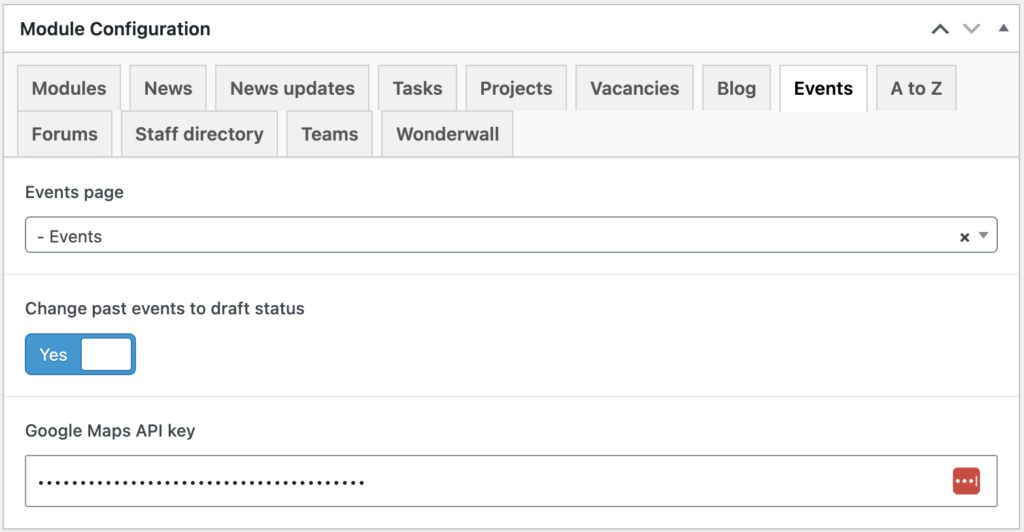
Change past events to draft status
Go to Options, then Modules, Events tab. Change past events to draft status is off by default. When it is on, the intranet checks every five minutes and turns any published event whose end date and end time have passed into a draft. Drafted events disappear from the Events page, the Events widget and search. Use it to keep the events list clean on a site that does not need an archive.
Nothing turns a drafted event back into a published one. Switching on Show past events later does not bring them back; you would have to publish each one again by hand. Pick one approach: either draft past events, or keep them published and let staff browse them with Show past events.
Google Maps API key
On the same Events tab, Google Maps API key is needed if editors will use the Map location box on events. With a key, editors can search for a place on the event edit screen, and the event page shows a map with a marker in the sidebar. Without a key, the map picker does not work and no map is shown. Get a key from the Google Cloud console with the Maps JavaScript API and Places API enabled.
Add the page to a menu and the sidebar
Add the Events page to your main navigation: see Setup navigation menus. To put widgets next to the list, go to Appearance, then Widgets, and add them to the Events Landing area. Those widgets appear in list view only. The week and month grids use the full width of the page.
What staff see on the Events page
From top to bottom: the page title, your introduction, three layout icons (list, week, month), the Upcoming and Past events buttons if past events are on, and a row of event type buttons, All then each top-level type that has a published event. See Manage event types.
- List view shows events in date order, each with a date box, the title, the date or date range, start time, location, an Online meeting link if there is one, and the first 20 words of the excerpt. The number per page follows Settings, Reading, Blog pages show at most. If there is nothing to show, the page says “No upcoming events.” or “No past events found.”
- Week view shows Monday to Sunday with each day’s events and start times. Month view shows a full calendar grid. An event that runs over several days appears on every day it covers. Previous and next buttons only appear when there are events to reach, and forward browsing stops two years ahead. Selecting the date range heading opens a date picker to jump to any week or month.
To add events, see Add or edit an event. To show upcoming events on the homepage, see the (Govintra) Events widget.