
The Comms hub template turns a page into a communications dashboard: the latest news stories, blog posts and news updates on one page, each group with its own heading, filters and a link through to its full listing. It is designed as the page people go to for “what’s new”, either as the main news landing page or linked from the homepage. To use it, edit a page and choose Comms hub under Page Attributes, Template. Anything typed in the editor appears under the page title as an introduction.
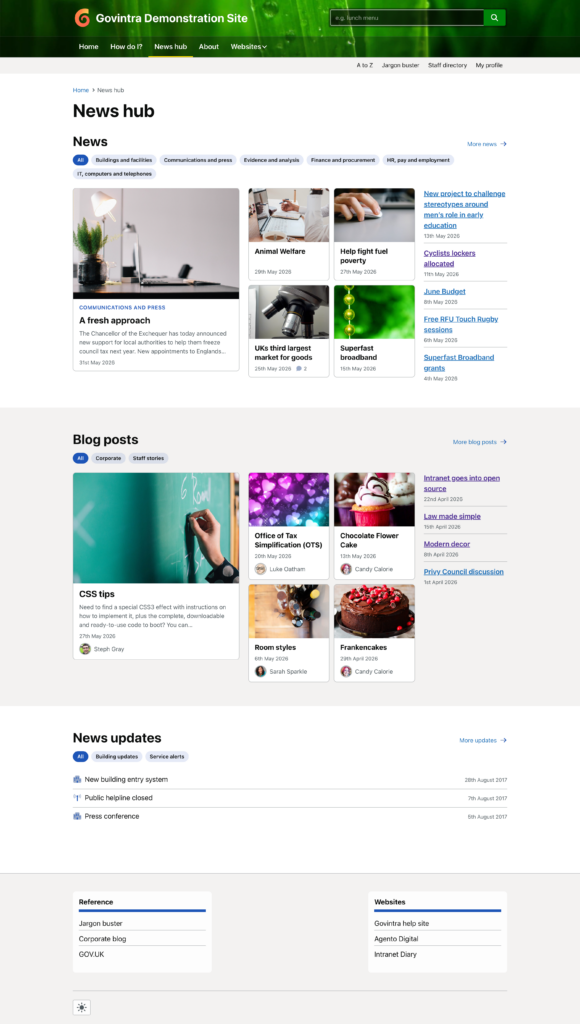
Comms hub settings on the page
Once the template is chosen, a Comms hub settings box appears in the right-hand column of the page edit screen.
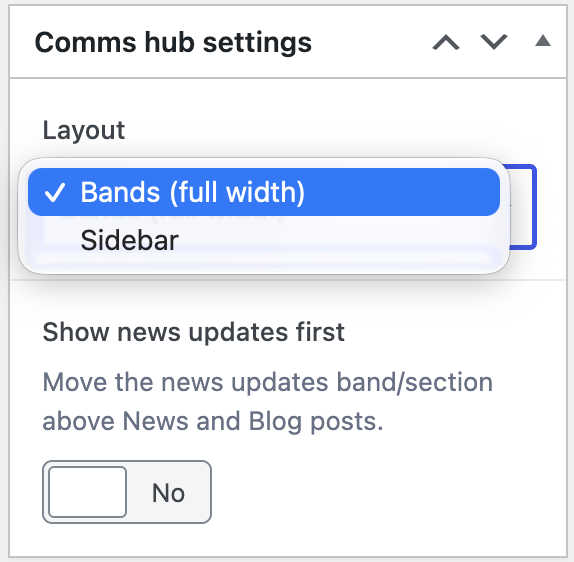
- Layout: Bands (full width), the default, or Sidebar. Described below.
- Show news updates first: off by default, so the order is News, then Blog posts, then News updates. Switch it on to move news updates to the top, for an intranet where short notices matter more than stories.
There is no setting for the number of items: each section shows its ten most recent published items.
Which sections appear
The hub can show three sections, and each depends on a module under Options, Modules: News, Blog and News updates. A section is left out when its module is off or it has no published items, so a site without a blog simply gets two sections. Each section heading has a link on the right, More news, More blog posts or More updates, to the page set on the same screen as the News page, Blog page or News updates page. Set those pages, or the News and Blog sections have no More link. See Module settings and options.
Filter pills
Under each heading is a row of pills: All, then every top-level news type, blog category or news update type that has at least one published item. Selecting a pill opens the module’s listing page with that filter already applied, so the hub is a way in to the full News, Blog listing and News updates listing pages. The pills do not filter the hub itself. See News types, Blog categories and News update types.
Bands layout
Each section is a band that spans the full width of the screen, one under the other. The News and Blog posts bands have three columns:
- Hero: the newest item as a large card with its featured image (or its embedded video or audio), title and the first 25 words of its excerpt. A blog hero also shows the author’s photo and name.
- Grid: the next four items as a two-by-two grid of cards with thumbnail, title, date and comment count. Blog cards add the author’s photo and name.
- List: items six to ten as titles with dates.
A section with fewer items simply has fewer columns. The News updates band is a single list of up to ten updates, each with its type’s icon, title, date and comment count.
Sidebar layout
The sections stack in a main column with a sidebar on the right. Each News or Blog posts section shows the hero, then the two-by-two grid, then items six to ten as a compact list; blog rows in that list include the author’s photo, name and excerpt. The sidebar shows whatever is typed in the page’s Sidebar box, followed by the Comms Hub Sidebar widget area from Appearance, Widgets. If both are empty, no sidebar is shown. Intraverts, the Need to know widget and an events widget are typical choices; see Setup widgets on the homepage.
What the page draws on
News stories, blog posts and news updates that are published, newest first, with their featured images, excerpts, types and categories. Drafts, scheduled items and expired items are left out. Where likes are switched on for news or blog posts, cards show a like count too. Nothing is pinned or excluded on the hub; to feature a chosen story, use the News widget or Blog posts widget on the homepage instead.
On an intranet migrated from the previous version of the theme, pages that used the older News multi and Newsboard templates are switched to the Comms hub template during migration; see Govintra post-migration checklist.
Related
- Available templates: every page template in the theme.
- News template: the full news listing the hub links to.
- Blog listing template: the full blog listing.
- Setup navigation menus: adding the hub to a menu.