
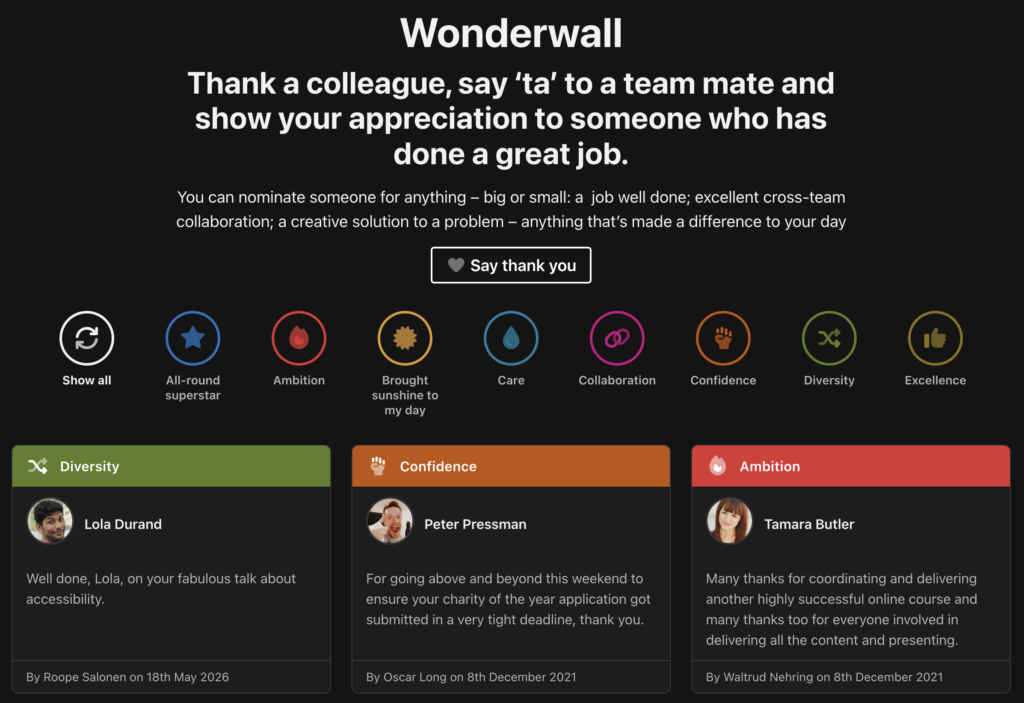
The Wonderwall is the intranet’s recognition wall: a page of thank-you cards where any member of staff can publicly thank a colleague or a team, under an award category with its own colour and icon.
What the wall page shows
The page title and any introduction, then a Say thank you button (or your own button text) for anyone who is logged in, then a row of filter buttons, one per award category, with Show all first. Below that is a grid of the newest twelve entries, with a Load more button that fetches twelve more each time. Selecting a category filters the grid without reloading the page.
Each card shows the award category as a coloured header with its icon, the photo and name of the person thanked (or a team icon and the team’s name), the first thirty words of the message, like and comment counts where there are any, and who posted it and when. Selecting a card opens the full entry.
A wall with nothing on it yet says “No entries on the [wall name] yet. Be the first to [button text]!”.
How staff add a thank you
The form page is for logged-in staff only; anyone else is sent to the login screen first. The form asks three things:
- Who do you want to thank? Choose A person and pick one or more people from the list, or A team and pick a team. People hidden from the staff directory are not offered.
- Why would you like to thank them? The message. Required.
- Your seal of approval: the award category, from a dropdown. Required. The categories are also listed beside the form with their icons and descriptions.
The entry is published straight away. There is no approval step. Its title is set automatically to the name of the person, people or team thanked, and the person who wrote it is recorded as its author. They are returned to the wall with a “Thank you! Your message has been added” note, and the emails go out.
The entry page
Each thank you has its own page showing the award badge, the date, who submitted it, the message, and in the sidebar a staff card for each person thanked, or a panel for the team, linking to their profile or team page. Entries support comments, so a comment form appears when comments are allowed for the entry. Whether a new entry allows comments follows the default under Settings, Discussion.
Where else entries appear
- Staff profiles: a person who has been thanked gets a button, labelled with the wall name and icon, that slides open a panel of their entries.
- Team pages: the same button and panel for entries that thank the team.
- The widget: (Govintra) [wall name] shows the latest entries in any widget area. Settings: Title, Number of entries (1 to 20), Columns (one or two), Show message snippet, and Expand multiple mentions, which lists everyone named instead of one person with a “+2 others” note. The widget ends with a link to the wall. See Set up the homepage widgets.
Who can do what
Everyone who can log in, including subscribers, can add a thank you and choose a category. Only administrators can edit or delete entries, add entries from the admin under Wall entries, Add wall entry, or manage the award categories. Custom roles cannot be given these rights: the theme reserves wall entry editing for administrators. See Roles and capabilities.
To remove an inappropriate entry, go to Wall entries, find it by the honouree’s name in the title, and move it to the bin.