
The Site overview box on the Dashboard shows user numbers, how much of each kind of content is published, and category and tag counts. Added in Govintra 5.3.53, it replaces WordPress’s At a Glance box and the Right Now Reloaded plugin. For how complete staff profiles are, see Use the Profilometer dashboard widget.
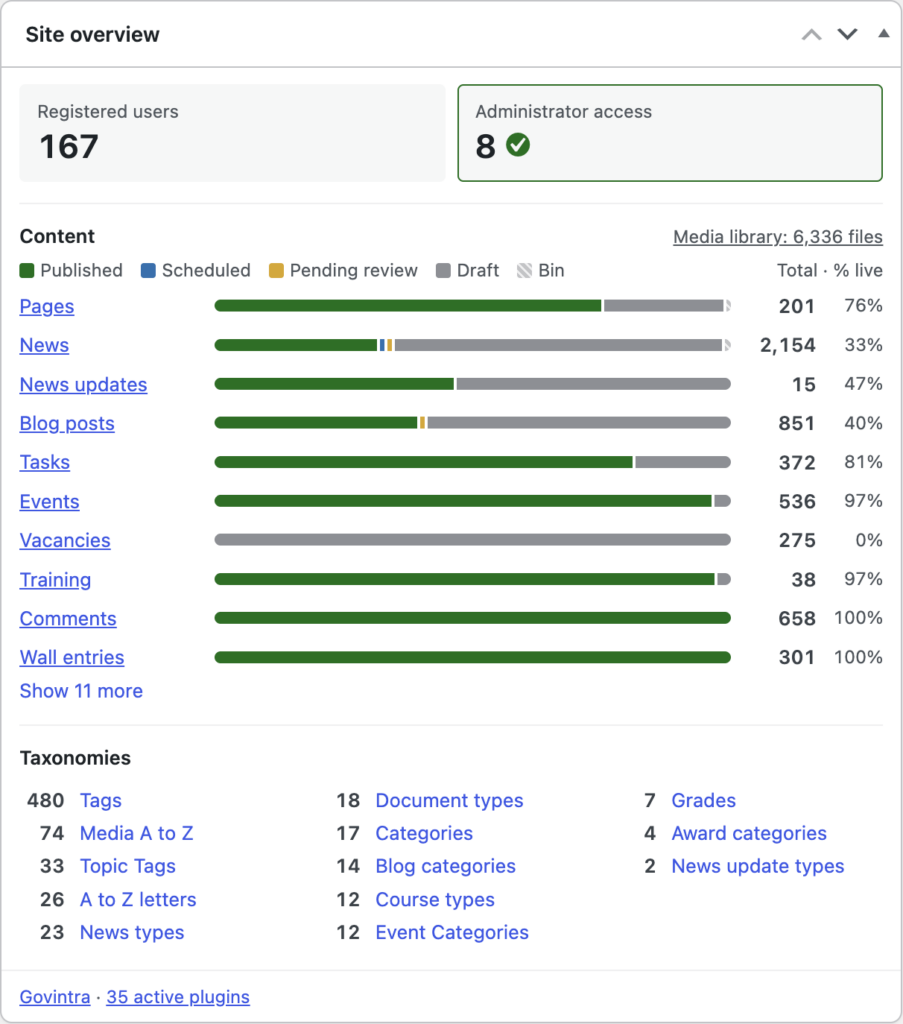
What the Site overview widget shows
Go to Dashboard, Home. The Site overview box starts at the top of the first column, where At a Glance used to be; if you have dragged the Dashboard boxes into your own order, it keeps the position you gave it. From top to bottom it shows user tiles (Registered users, Administrator access and, only when there are any, No role on this site), a Content table with a bar per content type, a Taxonomies list of term counts, and at the foot the active theme and number of active plugins. Tiles, content type names and bar segments link to the matching admin screen.
As with any Dashboard box, you can collapse it, drag it elsewhere, or hide it under Screen Options. If Right Now Reloaded is still installed, you can deactivate it.
Who sees the Site overview widget
Anyone who can edit posts sees the Site overview box, so on most intranets that means Contributors upwards. Parts of it depend on permissions:
- the user tiles need permission to list users, which usually only Administrators have;
- a content row appears only for types the person can edit, and only when there is at least one item;
- the Comments row needs permission to moderate comments, usually Editors and Administrators;
- the Media library link needs permission to upload files, usually Authors and above;
- the theme and plugin line needs permission to manage plugins, usually Administrators only.
Roles differ from site to site. See Roles and capabilities for what the standard roles allow.
Check how many people have administrator access
The Administrator access tile counts everyone whose role can change site settings, so a custom role with the same power as Administrator is counted too. Fewer administrators means fewer accounts that could be misused, so Govintra recommends ten or fewer. At ten or fewer the tile shows a green tick; above ten it turns amber with a warning icon.
Hover over the icon, or move keyboard focus to the tile, to read the advice. Above the limit it reads: “N people have administrator access. Keep it to 10 or fewer, and remove it from anyone who no longer needs it.” Within the limit it confirms the number is within the recommended 10 and asks you to keep removing access from anyone who no longer needs it.
Select the tile to open the Users screen showing only those people. A notice there names the roles that count as administrator access, repeats the advice, and offers a Show all users link.
Reduce the number of administrators
Change the role of anyone in that list who no longer needs to change site settings; an Editor can still publish and edit all content. For leavers, the (Govintra) Remove Users plugin removes accounts in bulk. A site with good reason for more than ten administrators can ask its developer to raise the limit.
Read the content bars in the Site overview
Under Content, each content type has a row. The bar is split into colours for Published, Scheduled, Pending review, Draft and Bin; the key above the table lists only the statuses that occur somewhere. To the right are the total and the % live figure: the share that is published. Private content counts as published here, because the staff allowed to see it can.
Hover over a part of a bar for the exact figure, for example “News: 12 drafts (8%)”. Select the content type’s name to open its list, or a part of the bar to open the list filtered to that status.
The Comments row works the same way: approved comments count as published, comments awaiting moderation as pending review, and spam and binned comments as Bin. The Media library: N files link beside the Content heading counts files in the Media Library, not those in its bin. To see pending counts in the admin menu too, see the (Govintra) Pending badge plugin.
Show more content types in the Site overview
The main Govintra content types are always listed, in a fixed order: Pages, Posts, News, News updates, Blog posts, Tasks, Events, Vacancies, Projects and Training, then Comments and Wall entries. Only the modules your site has switched on appear, and a type with no items is left out.
The theme’s other content types (Teams, Team news, Intraverts, Ultraverts and Jargon busters) and any added by plugins sit behind a Show N more link below the table, biggest first. Select it to reveal them, and Show fewer to hide them again.
Categories, tags and other groupings
The Taxonomies section lists every grouping the site uses to organise content, such as categories, tags, news types, event types and A to Z letters, with the number of terms in each, biggest first; empty terms are included. Where two groupings share a name, the content type is added in brackets, for example “Categories (Events)”. If you are allowed to manage a grouping (usually Administrators only), its name links to the screen where you add, rename and delete its terms.
The Site overview figures are live
The box keeps no figures of its own: every time the Dashboard loads it counts users, content, comments, files and terms afresh, so what you see is the current state of the site. There is nothing to set up and no settings screen.