
Event types group events, in the same way that categories group news. Staff use them to narrow the Events page to the kind of event they want, such as training, talks or staff network events. This page explains how to add and change event types and where they appear. To create the events themselves, see Add or edit an event.
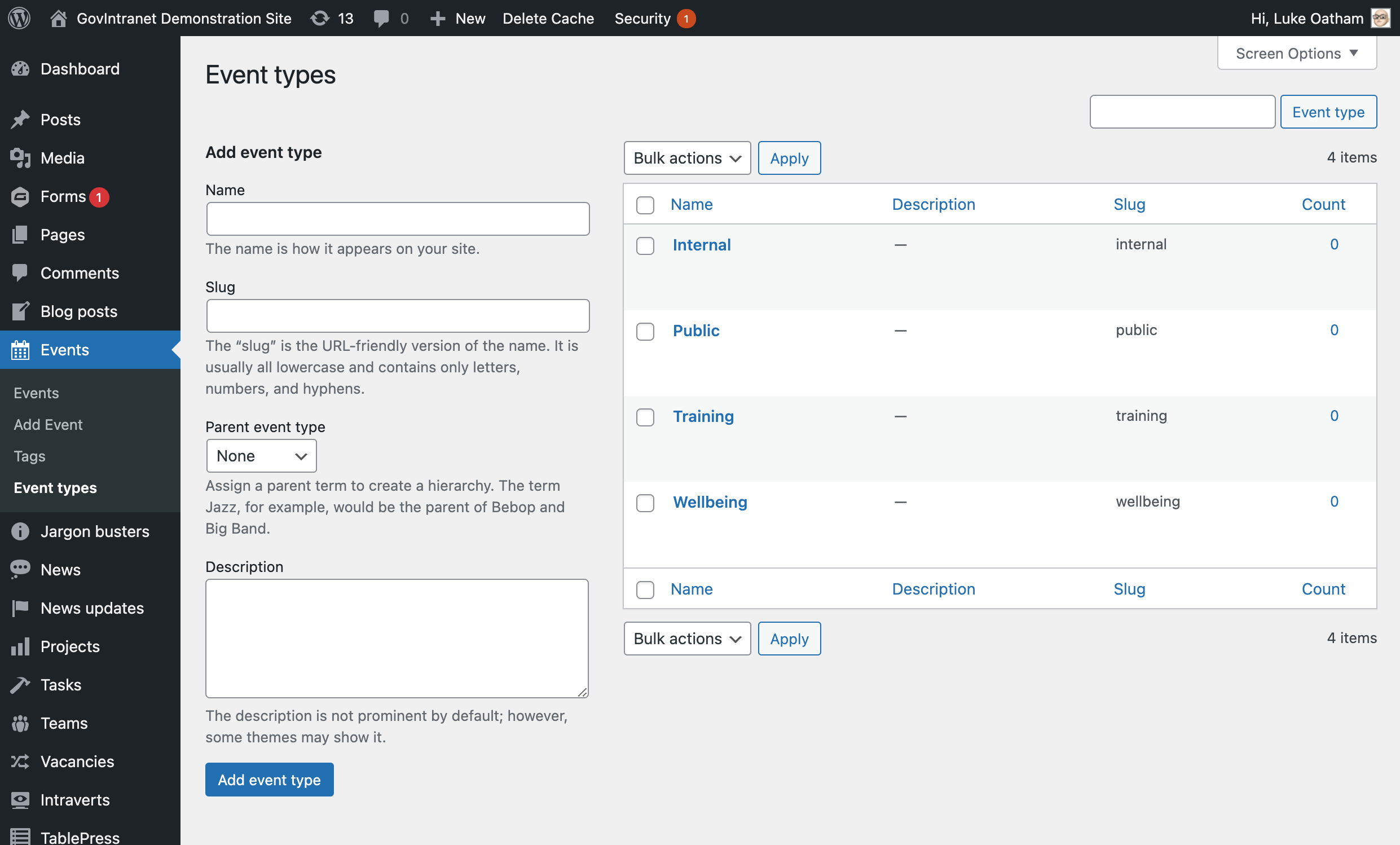
Who can manage event types
Only administrators can add, rename and delete event types. Everyone else chooses from the existing types when they write an event, but cannot add new ones. Your intranet may have changed these roles.
Add an event type
- In the left-hand menu, select Events, then Event types. The Events menu only exists when the Events module is switched on under Options, then Modules.
- Type a Name, such as “Training and development”. Keep names short: each one becomes a button on the Events page.
- Leave Slug empty and the intranet makes one from the name. The slug is the version used in web addresses and in the
[listevents]shortcode. - Optional: choose a Parent event type to make this a sub-type, for example “First aid” under “Training and development”.
- Optional: add a Description. It is for your own reference and is not shown to staff.
- Select Add new event type.
The screen works like every other WordPress category screen. See Add terms to taxonomies for the general instructions.
Rename or delete an event type
On the Event types screen, hover over a type and select Edit to change its name, slug, parent or description, or Delete to remove it. Deleting a type does not delete any events. The events simply lose that type, so tick a different type on each of them afterwards if you want them to stay findable by type. The Count column shows how many events use each type. Select the number to list them.
Give an event a type
On the event edit screen, tick one or more types in the Event types box in the right-hand column. An event with no type still appears on the Events page under All, in the Events widget and in search, but staff cannot filter to it by type.
Where event types appear
Filter buttons on the Events page
The Events page shows a row of buttons: All, then one button for each top-level event type that has at least one published event. Selecting a button shows only events of that type. It works in the list, week and month views. Sub-types do not get their own button. Selecting the parent type includes the events in its sub-types.
Links on each event page
The sidebar of an event page lists the event’s types under an Event types heading. Selecting one takes staff to the Events page filtered on that type. This needs the Events page to be chosen under Options, Modules, Events: see Set up the events page.
The Events widget
The (Govintra) Events widget has an Event types setting. Tick types to limit the widget to them, for example a homepage widget that shows only training events.
The listevents shortcode
Editors can list upcoming events of one type anywhere in a page with the shortcode [listevents cat="training-and-development" num="3"], using the type’s slug. The shortcode inserter on the editor toolbar fills this in for you.
The events list in the admin
Under Events, All events, an Event type column shows each event’s types, next to a Start date column that you can sort by.