
(Govintra) Leaderboard widget
The Leaderboard widget shows a set of named progress bars, one per row, each filled to a percentage you type in. Use it for survey response rates, fundraising progress, KPIs, league tables or anything else that can be expressed as a percentage. Each bar can carry its own colour and a Font Awesome icon, and you can add a short commentary below the bars.
The widget replaces the People Survey widget from the old HT People Survey plugin. Settings from that widget are not carried across: add a Leaderboard widget and enter the rows again.
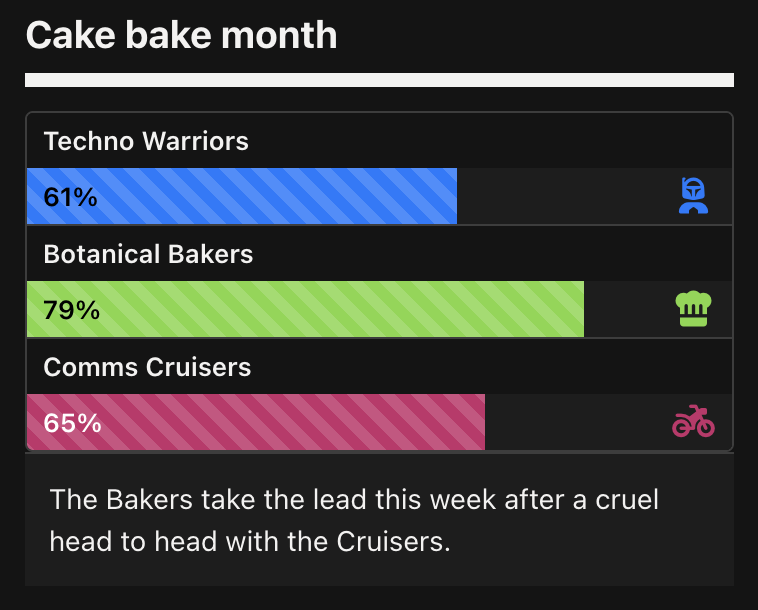
Leaderboard widget example
Add the Leaderboard widget
- Go to Appearance > Widgets.
- Drag (Govintra) Leaderboard into a widget area, such as a home page column or a sidebar.
- Open the widget, complete the settings below and select Save.
The Leaderboard widget is always available; it does not depend on any module being switched on.
Leaderboard widget settings
The widget has a Title box at the top, followed by a Leaderboard options panel containing the rows and display settings.
Title: the heading shown above the bars. Leave it blank for no heading.
Rows
Each row is one bar. Select Add row to add a row, and use the handle on the left of a row to drag rows into the order you want. Rows are shown in the order you set here; the widget does not sort them by percentage, so if you want a league table put the highest first.
Name: the label shown above the bar. Required. A row with no name is left out.
Percentage: how full the bar is, from 0 to 100. Required. The value is shown inside the bar as a whole number followed by %; decimals are dropped.
Icon: the name of a Font Awesome icon to show at the end of the bar, without the fa- prefix (for example trophy, users or heart). Leave it blank for no icon. Icon names are listed at fontawesome.com/icons.
Icon style: the Font Awesome style to draw the icon in. This setting only appears once you have typed an icon name. The choices are Solid (the default), Regular, Light, Duotone Solid, Duotone Regular, Duotone Light and Brands. Solid and Brands are always available; the other styles only work if they are ticked under Options > General on the Style tab, under Font Awesome variants. An icon in a style that is not loaded will not display correctly.
Colour: an optional colour for this row’s bar and icon. Leave it unset to use the Default bar colour. Use a different colour per row to distinguish teams or categories.
Display settings
Default bar colour: the colour used for every bar that does not have its own Colour. The default is a blue (#007bff).
Texture: Flat or Striped. Striped adds a diagonal stripe pattern to the bars. A bar at 100% is always drawn flat, so a completed row stands out from the rest.
Commentary: text shown in a panel below the bars, for example the survey closing date or where the figures come from. Line breaks are kept. The box accepts plain text and basic HTML such as links and bold.
How the widget displays
- Each row shows its name, then a bar on a lighter track. When the page loads, the bars grow from empty to their percentage over about two seconds.
- The percentage is printed inside the bar. The text is black or white, whichever reads better against the bar colour, so pale colours get dark text and dark colours get white text.
- If a row has an icon, it sits at the right-hand end of the track in the same colour as the bar, and the bar stops short of it even at 100%.
- The commentary panel appears below the last bar, in a lighter shade.
- If the widget has no rows, nothing is shown on the page, not even the title. Add at least one row with a name and a percentage.
- Screen readers announce each bar as a progress bar with the row name and percentage.
Tips
- Keep names short. Long names wrap above the bar and make the widget taller.
- For a league table, order the rows from highest to lowest and give the top row its own colour.
- For a single target, such as a fundraising total, use one row with the target in the Title and the current figure in the Commentary.
- Change the Percentage values and save the widget whenever the figures change; there is no feed or automatic update.