
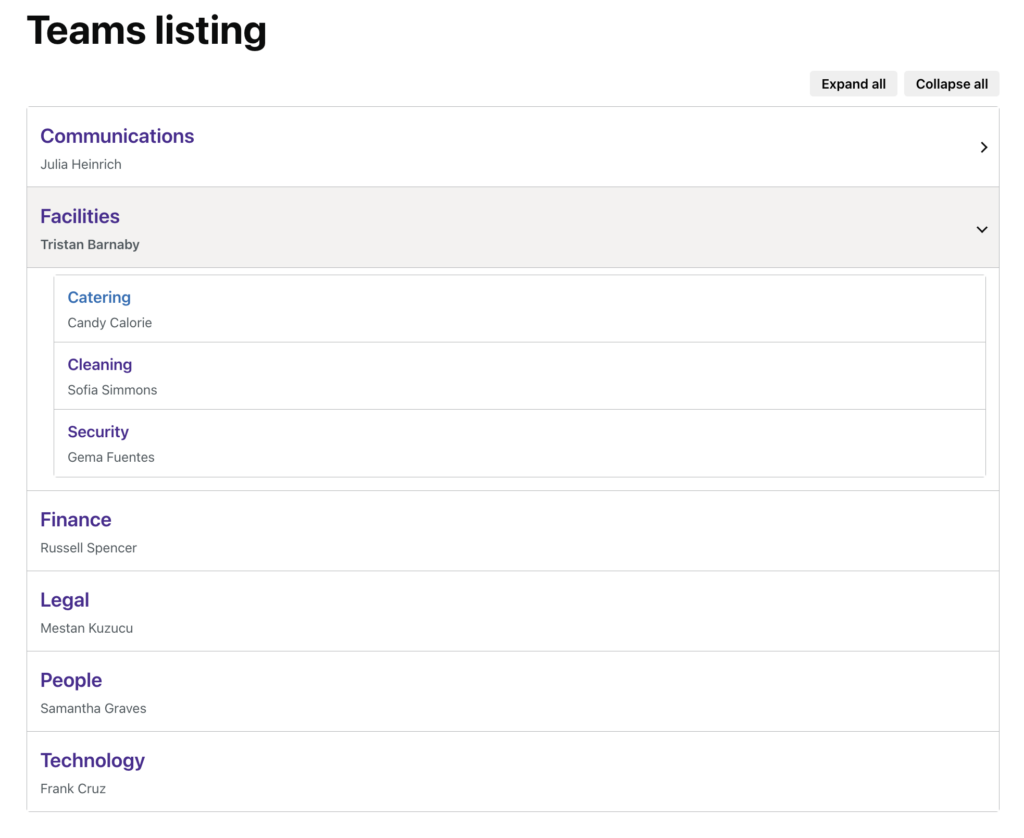
The Teams template turns a page into a directory of your organisation’s structure: every team, with its sub-teams folded beneath it, its leaders and a short description, each linking to the team’s own page. It is normally applied to a page called “Teams” or “Departments” and linked from the main menu and from the staff directory. It needs the Teams module and the teams themselves to exist; see Set up the staff directory for creating them.
Create the teams page
- Go to Options, then Modules, and make sure Teams is ticked.
- Go to Pages, then Add New. Give the page a title such as “Teams”, and in the Page Attributes box set Template to Teams. Anything you type in the editor appears under the page title, above the list, so this is the place for a sentence on how the structure is organised.
- Publish it, then go back to Options, Modules, Teams and choose it as the Teams page. That gives team pages their breadcrumb back to the list and highlights the right menu item.
- Add the page to a menu. See Setup navigation menus.
What the Teams page shows
Every published team, in alphabetical order, as a tree. A team with sub-teams is a collapsible section: its name, its leaders to the right, and inside it the team’s description followed by its sub-teams, which collapse in the same way to any depth. A team with no sub-teams is a plain row with its name, leaders and description. Every team name links to that team’s page.
Above the list are Expand all and Collapse all buttons. The tree works without JavaScript too, as ordinary open-and-close sections.
The page has no search box and no sidebar. Staff looking for a person rather than a team use the staff directory, whose team menu lists top-level teams and their first level of sub-teams.
Link straight to a team in the tree
Add #team- and the team’s slug to the page address, for example /teams/#team-press-office. The page opens every level above that team and scrolls to it. The slug is the last part of the team page’s own address, after /team/.
What each row takes from the team
- Name: the team’s title.
- Leaders: the people picked in the Team lead(s) box on the team, shown by name after the team name. Nothing is shown when the box is empty.
- Description: the team’s Excerpt. The team’s main editor content is not shown here, only on the team page. Keep the excerpt to a sentence; it is also shown under sub-teams on the parent’s team page.
- Position in the tree: the team’s Parent in the Page Attributes box. A team with no parent is a top-level section.
Teams are sorted by name at every level. The Order box in Page Attributes has no effect on this page. Draft and private teams are left out. A published team with no members still appears; unpublish it to hide it.
Structure the teams
Teams are a kind of content, not a category. Go to Teams, then Add New. To make a sub-team, choose its Parent in the Page Attributes box. You can nest as deeply as your organisation needs; five levels works. Authors can add teams and edit their own; editors and administrators can edit any team.
A team’s page at /team/team-name/ shows its featured image, description, leaders, a list of its sub-teams under “Also in”, and its members: the people who chose that team on their profile, together with everyone in its sub-teams. So a directorate’s page lists everyone beneath it, and the Teams page is the map of how it all fits together.
Show teams elsewhere
- The staff directory’s team menu, on the page using the Staff directory template.
- The
[people team="press-office"]shortcode lists a team’s members, including its sub-teams, on any page. See Display a list of users by team or an individual user. - Team news: with Team news pages switched on under Options, Modules, Teams, each team can have its own news stories, shown on the team page.
Related
- Available templates: every page template in the theme.
- Set up the staff directory: creating teams, profiles and the directory page.
- Staff directory template: the people-finder page and its team menu.