
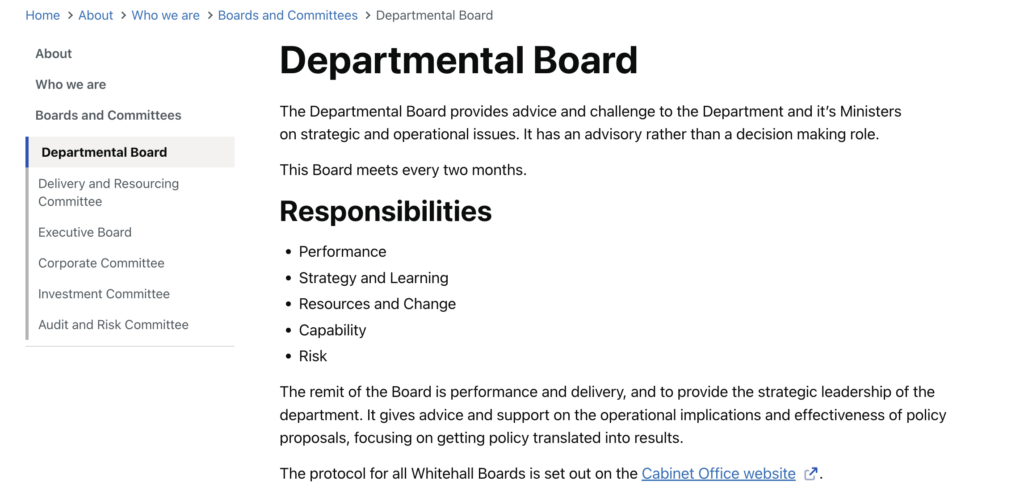
The Page with left navigation (wide) template shows a menu of related pages in a narrow left-hand column, with the page content across the remaining three quarters of the width. The menu is built automatically from the page’s position in the page hierarchy, so it is the usual choice for a section of the intranet made of parent and child pages, such as a policy manual or a department’s pages, where you want the content as wide as possible.
Choose it in the Page Attributes box, under Template: see Change a page layout. It is available for pages only.
What the left navigation lists
The menu is worked out from the Parent setting in the Page Attributes box of each page, so the structure of your pages is the structure of the menu. Nothing needs to be added to a menu screen.
- The pages above: each ancestor of the current page, from the top of the section down, as links.
- The current page: shown in bold, not as a link.
- Its child pages: listed under the current page, as links, in the order set by each child’s Order number.
- Grandchild pages: if a child has pages of its own, a chevron appears beside it. Selecting the chevron expands the list; it starts collapsed.
- Sibling pages: once the page is two or more levels below the top of a section, its parent is shown with all of the parent’s children, so the reader can move sideways between the pages of the section as well as up and down.
Only published pages are listed. A draft or private page never appears, so you can build a section before it goes live. To change the order of pages in the menu, edit each page’s Order in Page Attributes, or use Quick Edit in the Pages list. See Create pages for setting parents.
Widgets under the navigation
Any content placed in the Page Sidebar area, appear in the left column beneath the menu. That is the only sidebar on this template. There is no right-hand column, so the content of the page’s Sidebar box is not displayed. If you need the Sidebar box or a right-hand column of widgets, use the plain Page with left navigation template.
Wide or plain: which to choose
- Page with left navigation (wide): menu in the left quarter, content in the right three quarters, no right column. Best for text-heavy pages, tables and forms.
- Page with left navigation: menu in the left quarter, content in the middle half, and a right quarter that shows the Sidebar box and the Page Sidebar (Right) widget area. Best when each page needs its own contacts, downloads or related links beside the text.
Both templates show the breadcrumb trail, the title, the content, a list of any files attached in the Document attachments box, and, on the wide template, comments if they are allowed on the page. On a phone the menu appears above the content.
Pages without a hierarchy
On a top-level page with no child pages the menu shows only the page’s own title, which looks empty. Use the Full-width page or Default template for pages that stand alone, and this template once a page has children or a parent. For navigation between pages that are not in a hierarchy, use a menu instead: see Setup navigation menus.