
The Long page template is for a long document with several sections: a policy, a handbook chapter, a set of guidance notes or an annual report. It shows a Contents list in a narrow left-hand column, built automatically from the H2 and H3 headings in the content, with the content across the remaining three quarters of the width. As the reader scrolls, the heading they are reading is highlighted in the list. It is available for pages and for tasks.
Choose it in the Page Attributes box, under Template: see Change a page layout. Nothing else needs to be set up; the list comes from your headings.
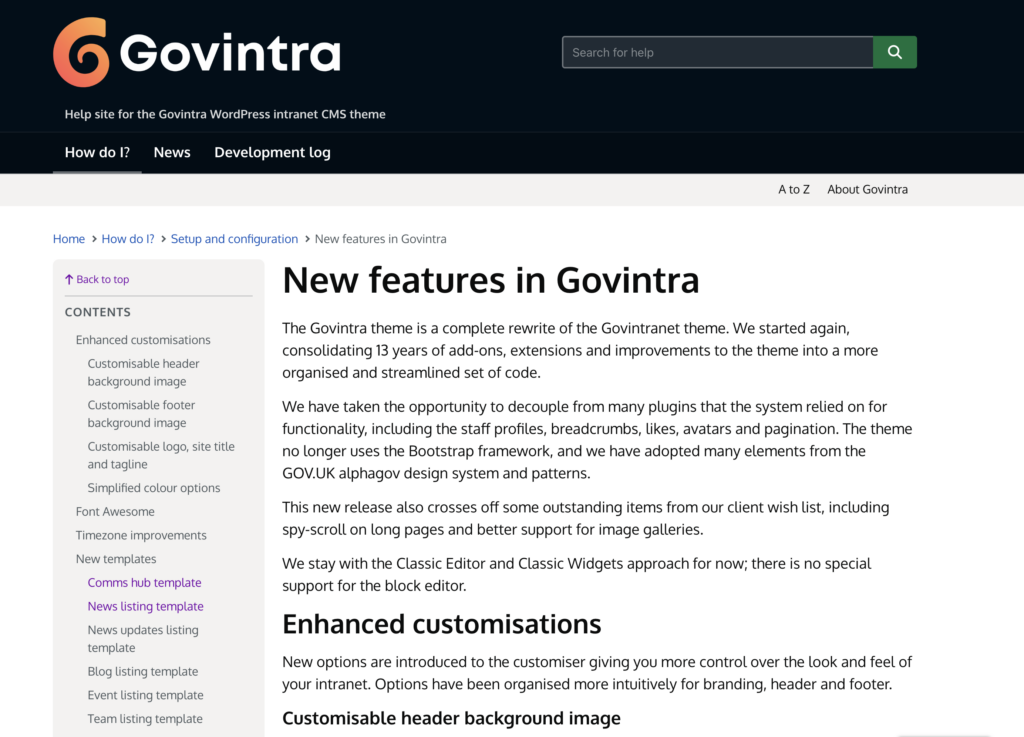
How the contents list is built
When the page is shown, the theme reads the content and picks out every Heading 2 and Heading 3. Each becomes a link in the Contents list, in the order it appears on the page. Heading 3 entries are indented under the Heading 2 above them. Heading 4 and smaller headings are not listed, so use them for detail within a section rather than for sections you want people to jump to.
Headings produced by a shortcode count too, because the list is built after shortcodes have run. If the content has no Heading 2 or Heading 3 at all, there is no list and the content is shown across the full width instead, as on the Full-width page template.
Set headings with the Paragraph drop-down in the editor toolbar. Do not fake a heading with bold text; it will not be picked up.
Links to a section of the page
Each listed heading is given an address based on its wording, so a heading “Annual leave” can be reached at /page-address/#annual-leave. If two headings have the same wording, the second gets -1 on the end, the third -2. If you have given a heading your own id in the Text tab of the editor, that id is kept. Selecting an entry in the Contents list scrolls to the heading and puts the address in the browser’s address bar, so a reader can copy it and send a colleague straight to that section.
What the reader sees
- On a desktop or tablet (768 pixels wide and up) the Contents box stays in view on the left while the content scrolls. If the list is taller than the window it scrolls on its own, and it keeps the highlighted entry in view.
- The heading nearest the top of the window is the highlighted one. Selecting an entry scrolls smoothly to the section; people who have asked their device to reduce motion get a plain jump instead.
- A Back to top link sits above the list.
- On a phone the Contents box appears above the content and scrolls away with it. The links still work.
- Without JavaScript the list is a plain set of links, with no highlighting.
What the template leaves out
There is no right-hand column. The Sidebar box on the edit screen is not displayed, widgets in the Page Sidebar area do not appear, and comments are not shown even when they are allowed on the page. Files added in the Document attachments box are listed under the content as usual. If you need the Sidebar box or widgets, use the Default template or Page with left navigation instead.
Long page for tasks
On a task, the template replaces the usual task layout: the sidebar of related content, categories, tags and Task Sidebar widgets is left out and the Contents list takes its place. If the task is part of a guide, the guide’s name still appears above the title, the guide’s own list of parts appears under the title, and Previous and Next links appear at the bottom; see Add or edit a guide. If the task is set to Treat as a manual, its chapters are shown as open-and-close sections beneath the content, but the chapter headings are not added to the Contents list, which only reads the main content.
Tips
- Give every section a Heading 2, and use Heading 3 for sub-sections. Five to fifteen entries make a useful list; a page with two headings barely needs one.
- Keep headings short and different from each other, because they are the wording of the list entries. “Annual leave” reads better in a menu than “Everything you need to know about annual leave”.
- For a live example, see the help site’s own New features in Govintra page, which uses this template. All the other templates are described in Available templates.