
The words in the draft are the PDF’s own. The tool reads the document’s layout, so it knows a heading from a paragraph and a table from a list, but it does not rewrite, shorten or add anything. The one thing it writes itself is the excerpt, a summary of the page for listings and search results, which the AI writes in the same way as the Generate an excerpt button.
The result is a draft. Nothing is published until you have checked it against the PDF and published it yourself.
Before you start
- An administrator must have switched on PDF to page, on the Writing tools tab of the Agento Intelligence settings. See Setup Agento Intelligence.
- Anyone who can create pages or tasks can use the tool. You can only create the kinds of content you could create anyway.
- The PDF must be in the media library. Upload it first if it is not.
- The PDF must contain real text. A scanned document, which is a picture of each page, cannot be converted. If you can select a word in the PDF with your mouse, it has text.
- The PDF can be up to 32 MB and 150 pages.
Convert a PDF
There are three ways to reach the tool:
- Go to Media, then PDF to page, and choose a PDF from the list. The list shows the most recent PDFs, and you can search for one by name, or upload a new one from there.
- In the media library’s list view, move the mouse over a PDF and select Convert to page.
- Open a PDF’s details in the media library and select the Convert to page button.
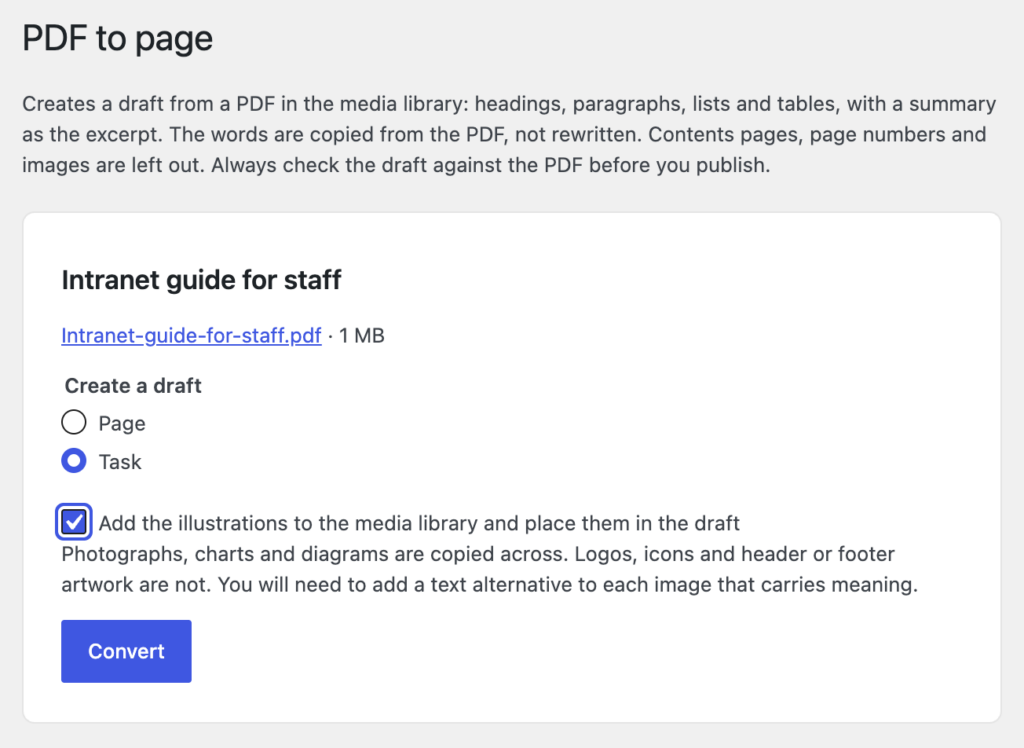
Then:
- Under Create a draft, choose whether to create a Page or a Task. Tasks belong on the How do I? side of the intranet, for guidance and things people need to do. Pages suit everything else.
- Optional: tick Add the illustrations to the media library and place them in the draft if the document has photographs, charts or diagrams you want to keep. Logos, icons and header or footer artwork are left out whatever you choose. You see this box only if you are allowed to upload files.
- Select Convert.
- Wait. The screen shows what is happening: sending the PDF, waiting for the converter, then reading the pages. A short document takes well under a minute. A long one can take a few minutes, and you can leave the tab open and do something else in another tab.
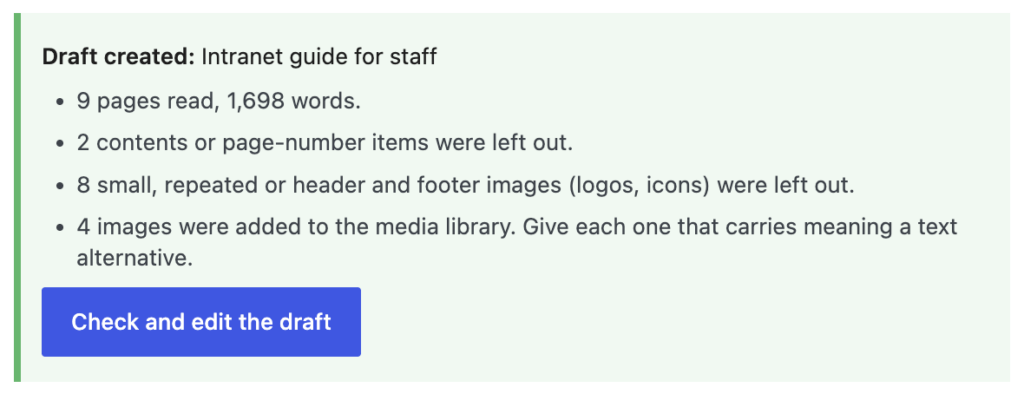
- When you see Draft created, read the notes under it, then select Check and edit the draft.
You can convert one PDF at a time. If a PDF has been converted before, the screen says Already converted and links to the earlier drafts, so check those before you make another.
What comes across and what is left out
The tool keeps what a reader needs and drops what only made sense on paper.
Kept:
- The document’s title, which becomes the page title. A title written in capitals is changed to ordinary capitals.
- Headings, at up to three levels, worked out from the size of the text in the PDF.
- Paragraphs, bold and italic text, bulleted and numbered lists.
- Tables, with their header rows, including links inside table cells.
- Links, whether to websites, intranet pages or email addresses.
- Footnotes. The footnote number stays in the text as a small raised number and the footnote itself is kept where it was, at the foot of that part of the page.
- Photographs, charts and diagrams, if you ticked the box. Each is added to the media library, attached to the draft and placed where it was in the document.
Left out:
- The contents page and the page numbers.
- Headers and footers that repeat on every page, such as the document name, the organisation’s name or a line of separators.
- Logos, icons, and small or repeated images.
- The layout: columns, boxes, coloured panels, fonts and colours. Text in two columns is read in the right order and becomes one column.
Slide decks and posters are converted, but only their words are kept. The screen tells you when the document looks like one.
Check the draft before you publish
The draft opens in the editor like any other page. Open the PDF beside it and go through the draft from the top. In particular:
- The top of the page. Text from the cover, such as a strapline, the author, a version number or a review date, arrives as ordinary paragraphs. Delete it or move it to the end. In a test with a nine-page staff guide, everything else was right and this was the only thing to remove.
- Headings. Check that the levels match the document’s own structure. If a document uses the same size of text for two different levels, the tool cannot tell them apart.
- Tables. A table that ran over a page break in the PDF arrives as two tables. Join them, or rebuild the table in TablePress if it is large. See Create a new accessible table.
- Images. Every image is placed with empty alt text, because the tool cannot know what an image means. Add alt text to each image that carries information, and leave it empty for decoration. See Add an image to a page.
- Links. Select each one. A link in a PDF can point to an old address or to a file that has since moved.
- Numbers, dates and names. These come straight from the PDF, but a table read in the wrong order or a footnote in the wrong place can change what they mean.
- The excerpt. The summary in the Excerpt box was written by the AI. Check it as described in Generate an excerpt. If the summary could not be written, the box is empty and the notes say so.
- Everything a page needs. Set the parent page or the task category, tags, keywords and a featured image, as you would for a page you had written yourself.
Then publish in the usual way. See Save, preview, schedule and publish.
What to do with the PDF afterwards
Once the page is published, link to the page rather than the PDF from menus, other pages and emails. If people still need a printable version, keep the PDF in the media library and link to it from the bottom of the page, saying what it is. If not, delete the PDF so that search does not show two versions, or leave it and let the page be the one that staff find.
When the document changes, edit the page. That is the point of converting it.
The notes under Draft created
- “9 pages read, 1,698 words.” What the tool read. If the word count is far below what the document contains, some of the text was probably in images.
- “2 contents or page-number items were left out.” The contents page and page numbers that were removed.
- “8 small, repeated or header and footer images (logos, icons) were left out.” Images that were judged not to be illustrations.
- “4 images were left out. Tick the images option to bring illustrations across.” The document had illustrations and you did not tick the box. Convert it again with the box ticked if you want them.
- “This looks like a slide deck or poster. The text has been kept but the layout has not.”
- “No title was found; the file name has been used.” Give the draft a proper title.
- “4 images were added to the media library. Give each one that carries meaning a text alternative.”
- “The summary could not be written, so the excerpt is empty.” Write the excerpt yourself, or use the Generate button in the Excerpt box.
If it does not work
- There is no PDF to page option under Media. The tool is switched off in the Agento Intelligence settings, or you cannot create pages or tasks. Ask your intranet administrator.
- “This PDF has no text in it (it is probably a scan), so it cannot be converted.” The PDF is a picture of the document. Find the original Word file and save it as a PDF, or write the page from the document.
- “This PDF is larger than the 32 MB limit” or “The PDF has 180 pages; the limit is 150.” Split the document, or reduce the size of its images, and try again.
- “You already have a PDF being converted. Wait for it to finish.” Your previous conversion is still running, perhaps in another tab.
- “This is taking too long. Try again later, or try a shorter PDF.” The conversion did not finish within 20 minutes. Try again when the server is less busy.
- “The conversion was interrupted. Start it again.” The server restarted while it was working.
- “PDF conversion is not available on your Agento Intelligence server yet. Contact Agento Digital.” Your AI server does not have the converter installed.
- “The AI service did not respond.” The AI server is busy, switched off or unreachable. Try again in a minute. If it keeps happening, tell your intranet administrator.
- The draft has the text but in the wrong order. This happens with unusual layouts, such as text boxes placed around a page. Rearrange the paragraphs in the editor, or write the page from the document.