
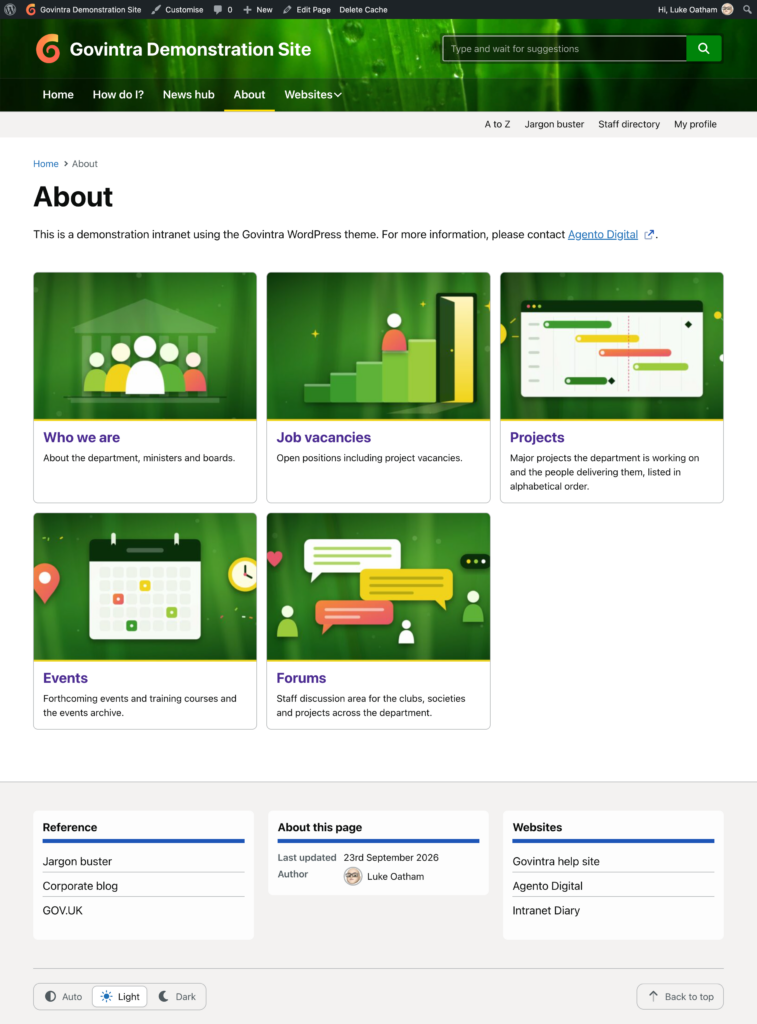
The About page template turns a page into a landing page for a section of the intranet: the page’s own content, followed by a card for each of its child pages. It suits an “About us” section, a department area or any group of pages that people should be able to browse from one place. To use it, edit the page and choose About page under Page Attributes, Template. It needs no module and has no Options screen setting.
Layout settings on the page
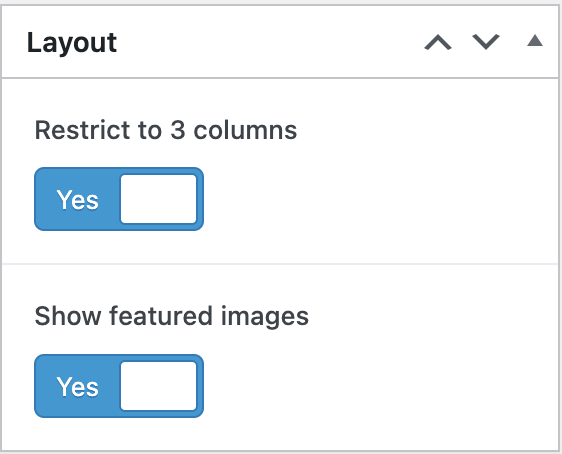
Once the About page template is chosen, a Layout box appears in the right-hand column of the page edit screen with two switches.
- Restrict to 3 columns: off by default, which gives four columns of cards on a wide screen. Switch it on for three wider cards per row, which suits longer titles and gives featured images more room.
- Show featured images: off by default. Switch it on to show each child page’s featured image at the top of its card. A child page without a featured image shows a card with text only.
On smaller screens the grid adapts by itself: two columns on a tablet and one on a phone, whichever setting is chosen.
What the About page shows
The breadcrumb, the page title and whatever is typed in the editor. This is the place for an introduction to the section. Below that comes the grid of cards, one for every published child page, so a page with no child pages simply shows its own content. Each card is a single link to the child page and shows:
- the child page’s featured image, when Show featured images is on;
- the child page’s title;
- a short description: the child page’s Excerpt if one has been written, otherwise the first 24 words of its content.
Only direct children appear. Grandchild pages are not listed, so nest a further About page template one level down if a section has sub-sections. Draft, scheduled and private child pages are left out until they are published. The page has no sidebar, so anything typed in the page’s Sidebar box is not shown on this template.
Order the cards
Cards are sorted by the Order number in each child page’s Page Attributes box, lowest first, and then alphabetically by title for pages that share the same number. Pages left at the default order of 0 therefore appear alphabetically. To put a page first, give it an Order of 1 and leave the rest at 0.
What the page draws on
Ordinary pages whose Parent, in the Page Attributes box, is the About page. Add a page under Pages, Add New, choose the parent, and it appears on the About page as soon as it is published. Write a one-sentence Excerpt for each child page so the card reads well; see Generate an excerpt. For image cards, set a featured image on each child page; see Set a featured image.
Alternatives
To list child pages part-way through a page, or on a page that uses a different template, use the sub-pages shortcode instead; see Display a list of sub-pages. For a landing page built from blocks of news, tasks and links rather than child pages, see the Aggregator page template.
Related
- Available templates: every page template in the theme.
- Change a page layout: choosing a template under Page Attributes.
- Setup navigation menus: adding the About page to a menu.