
Every page and task has a template that sets its layout. A new page uses the Default template, with the content on the left and a sidebar on the right. You can change it at any time without touching the content, and change it back just as easily.
Change the template of a page
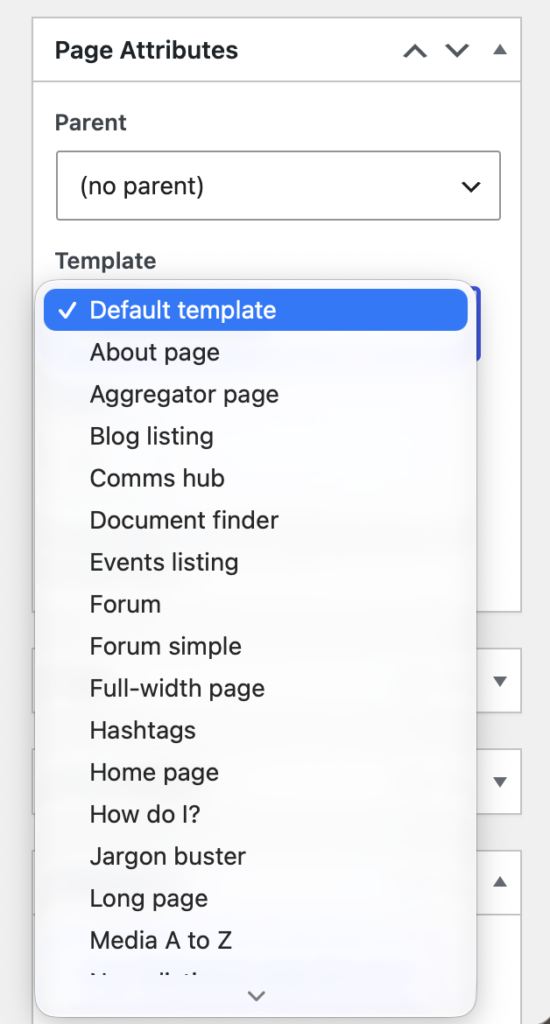
- Go to Pages and open the page for editing.
- Find the Page Attributes box in the right-hand column of the edit screen. It holds Parent, Template and Order.
- Choose a layout from the Template dropdown. Default template is the standard layout.
- Select Update (or Publish). Preview first if you are unsure: the preview uses the template you have just chosen.
To change several pages at once, go to Pages, tick the pages, choose Edit under Bulk actions and select Apply. The bulk editor has a Template dropdown. Quick Edit on a single page has one too.
Change the template of a task
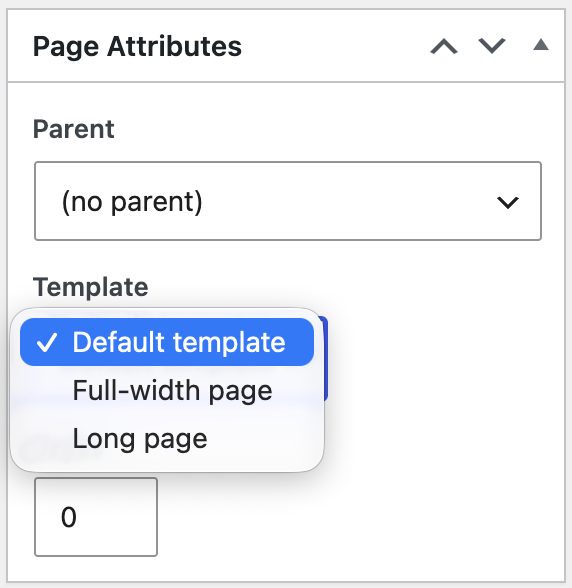
Tasks have a Page Attributes box as well, with the same dropdown, but only two templates are offered besides the default: Full-width page and Long page. The default task layout has the content on the left and a sidebar showing related content, the task’s categories and tags, and any widgets in the Task Sidebar widget area. Full-width drops the sidebar; Long page replaces it with a contents list. News stories, blog posts, events and the other content types have no template choice.
The general-purpose layouts
These work for any page. On a phone every layout becomes a single column.
- Default template: content in the left two thirds. The right third shows anything typed in the page’s Sidebar box, below the editor, and any widgets in the Page Sidebar widget area. If both are empty the column stays empty; the content does not stretch to fill it. Comments appear if they are allowed on the page.
- Full-width page: content across the whole width. No sidebar, no comments. Also for tasks.
- Page with left navigation: a quarter on the left for an automatic menu of the page’s parent, children and siblings, the middle half for content, and a quarter on the right for the Sidebar box and the Page Sidebar (Right) widget area.
- Page with left navigation (wide): the same menu in the left quarter, content in the remaining three quarters, no right column.
- Long page: a quarter on the left for a contents list built from the H2 and H3 headings in the content, which stays in view as the reader scrolls, and three quarters for content. With no headings it behaves like Full-width. Also for tasks.
The other templates in the dropdown are for a particular job, such as the homepage, a news listing or the staff directory. They are all described in Available templates.
Settings boxes that come with a template
Some templates add their own settings box below the editor as soon as you choose them: Hashtags, Aggregator page, About page, Signpost, Comms hub and How do I? among them. If the box does not appear straight away, save the page and it will. The box disappears again if you switch to another template, but its settings are kept, so switching back restores them.
The Sidebar and Document attachments boxes appear on every page whatever its template. Attached documents are listed on every layout. Of the general-purpose layouts, only the Default and Page with left navigation templates display the Sidebar box; Full-width, Page with left navigation (wide) and Long page ignore it. Some special-purpose templates show it too: How do I?, Comms hub, News updates listing and Vacancies listing put it in their sidebar.
What does not change
Changing the template never changes the content, the address, the parent, the menus or the featured image. It only changes how the page is laid out, so it is safe to try a layout and switch back. Choosing Page with left navigation on a page that has no parent and no children gives a menu with only the page’s own title in it; set up the page hierarchy first, as in Create pages.