
Fonts
Govintra uses the system fonts available on your device as default for frontend templates. The Font Awesome set is used for icons.
To add custom fonts, go to Options, General, Header scripts.
Paste code for third party fonts such as Google Fonts or your own custom font files in the Header code area.
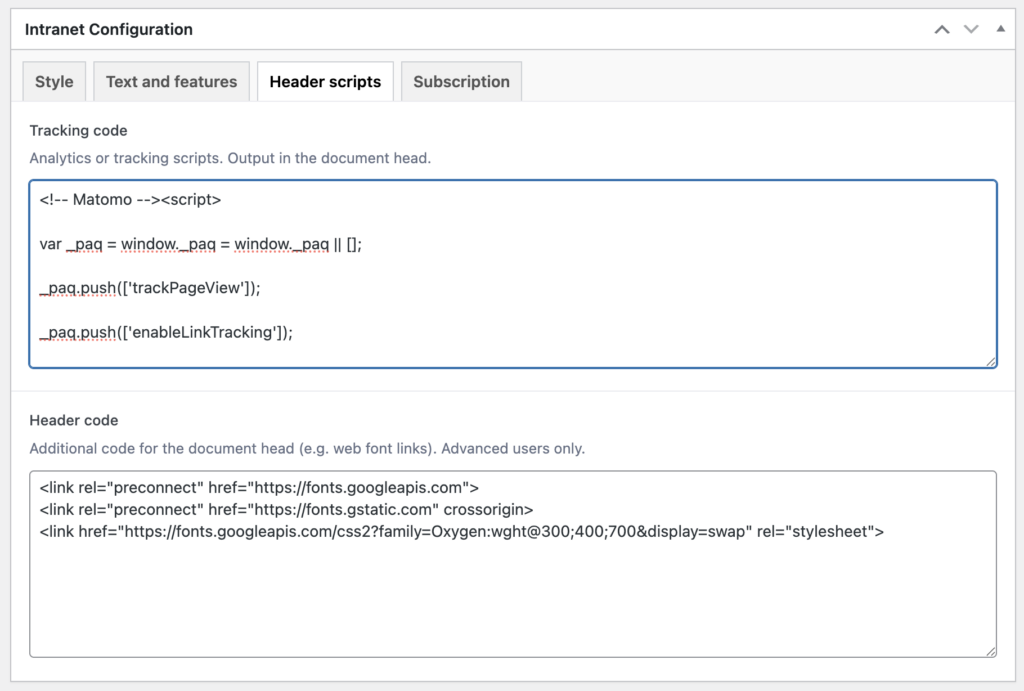
Tracking code and header code options.
To invoke fonts in your frontend pages, you’ll need to add some CSS styling in the Additional CSS section of the Customiser, for example:
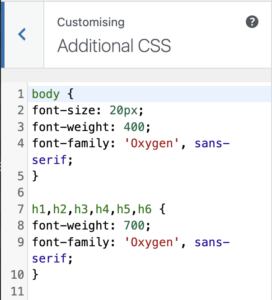
body {
font-size: 20px;
font-weight: 400;
font-family: 'Oxygen', sans-serif;
}
h1,h2,h3,h4,h5,h6 {
font-weight: 700;
font-family: 'Oxygen', sans-serif;
}
Scripts
Paste script from third-party services such as Google Analytics or Matomo into the Tracking code area. Warning: this is the only area of the system that we allow unrestricted scripts. You must trust the source of the script that you use.